| |

| HashMyFiles v2.51 - Calculate MD5/SHA1/CRC32/SHA-256/SHA-512/SHA-384 hashes of your files
Copyright (c) 2007 - 2026 Nir Sofer
|
See Also
Description
HashMyFiles is small utility that allows you to calculate the hashes (MD5, SHA1, CRC32, SHA-256, SHA-512, SHA-384) of one or more files in your system.
You can easily copy the hashes list into the clipboard, or save them into text/html/xml file.
HashMyFiles can also be launched from the context menu of Windows Explorer, and display the hashes
of the selected file or folder.
System Requirements
This utility works on Windows 2000/XP/2003/Vista/Windows 7/Windows 8/Windows 10/Windows 11. Older versions of Windows are not supported.
Versions History
- Version 2.51:
- HashMyFiles now uses Windows API for CRC32 calculation, which is much faster.
- Version 2.50:
- Added 'Live Hashes Display' option. When it's turned on, HashMyFiles displays the hashes of every file immediately after they are calculated, instead of waiting until all files are processed.
- Added new columns: 'Hash Start Time', 'Hash End Time', 'Hashing Duration'.
- Version 2.44:
- You can now send the hash data to stdout by specifying empty string as filename, for example:
HashMyFiles.exe /File "C:\Temp\*.*" /scomma "" | more
- Version 2.43:
- Added /cfg command-line option to start HashMyFiles with the specified config file.
- Version 2.42:
- Added 'Drag & Drop / Explorer Paste Folder Mode' option, which controls how folder is added when dragging a folder from Windows Explorer or pasting a folder from Windows Explorer.
- There are 2 option to choose: 'Add only files from the base folder' (The default option) or 'Add files from the base folder and all its subfolders'.
- Added option to change the sorting column from the menu (View -> Sort By). Like the column header click sorting, if you click again the same sorting menu item, it'll switch between ascending and descending order.
- Version 2.41:
- Fixed bug: The 'Open In VirusTotal Web Site' string of the Explorer menu was not loaded from the translation file.
- Version 2.40:
- The process of hashing very large files is now faster than previous versions.
- Fixed to display hashes for zero-length files.
- Version 2.38:
- Updated the 'Open In VirusTotal Web site' option to work with SHA1 and MD5 hashes.
- Version 2.37:
- Added option to choose another font (name and size) to display in the main window (Options -> Select Another Font).
- Version 2.36:
- Fixed another problem when hashing multiple files from the Explorer context menu.
- Version 2.35:
- Fixed again the 'Open In VirusTotal Web site' option, because the link on 2.33 didn't work for some users.
Also, HashMyFiles displays an error message if you try to use this option while SHA256 is turned off, because VirusTotal doesn't support MD5 hashes anymore.
- Added 'Copy SHA384' and 'Copy SHA512' options.
- Fixed problem when hashing multiple files from the Explorer context menu.
- Version 2.33:
- Added HashMyFiles icon to the Explorer context menu.
- Fixed the 'Open In VirusTotal Web site' option to open a link that allows you to reanalyze the file.
- Version 2.32:
- Fixed bug: HashMyFiles failed to remember the last size/position of the properties window if it was not located in the primary monitor.
- Version 2.31:
- You can now resize the properties window, and the last size/position of this window is saved in the .cfg file.
- Version 2.30:
- The Copy MD5/SHA1/SHA256 options now work with multiple selected items.
- Version 2.25:
- Added command-line options to turn on/off specific hash types, for example:
HashMyFiles.exe /MD5 1 /SHA1 1 /SHA256 0
- Version 2.24:
- Added 'Open Folder In Explorer' option.
- Version 2.23:
- Fixed the 'Mark Hash In Clipboard' option to work with unlimited amount of hashes (In previous versions it was limited to 255 characters)
- Version 2.22:
- Added 'Entry Modified Time' column (Available only on Windows Vista or later with NTFS file system).
- Version 2.21:
- Fixed bug: HashMyFiles created a csv file without header when using /SaveDirect command-line option with 'Add Header Line To CSV/Tab-Delimited File' option turned on.
- Version 2.20:
- Fixed the 'Open In VirusTotal Web site' option to work properly when 'Show Hashes In Uppercase' option is turned on.
- Version 2.19:
- Added new information to 'File Attributes' column: 'I' for 'Not Content Indexed', 'E' for encrypted file, 'X' for 'No Scrub File', and 'V' for 'Integrity Attribute'.
- Version 2.18:
- Fixed bug: The 'Run As Administrator' option failed to work on some systems.
- Version 2.17:
- Fixed bug: the extension column displayed a wrong value when the folder name had a dot character.
- Increased the size of bottom status bar to display long paths.
- Version 2.16:
- Explorer context menu inside HashMyFiles: When you right-click on a single item while holding down the shift key, HashMyFiles now displays the context menu of Windows Explorer, instead of the HashMyFiles context menu.
- Version 2.15:
- Added /SaveDirect command-line option for using with the other save command-line options (/scomma, /stab, /sxml, and so on...), which allows you to export
the hashes directly to a file, instead of accumulating all hashes in memory and then save them to file in the end.
- Version 2.11:
- Added 'Run As Administrator' option (Ctrl+F11).
- Version 2.10:
- Added accelerator key to 'Open In VirusTotal Web Site' option. (Ctrl+R)
- Fixed the 'Open In VirusTotal Web Site' option to work properly with MD5 hash when there is no SHA256 hash.
- Fixed bug: HashMyFiles failed to remember the last size/position of the main window if it was not located in the primary monitor.
- Version 2.05:
- Added option to add 'Open In VirusTotal Web Site' to the context menu of Windows explorer. When right-clicking on a file
in Windows Explorer and choosing 'Open In VirusTotal Web Site', HashMyFiles calculates the hash of this file and then opens it in VirusTotal Web site.
- Added /virustotal command-line option, which calculates the hash of the specified file and then opens it in VirusTotal Web site.
- Version 2.03:
- Fixed HashMyFiles to handle daylight saving time properly, like Explorer on Windows 7.
- Version 2.02:
- Added 'Copy SHA256' option (F11)
- Version 2.01:
- If SHA256 hash is not active, 'Open In VirusTotal Web site' option now works with MD5 hashes.
- Version 2.00:
- Added 'Open In VirusTotal Web site' option. (Works only when SHA256 hash is active)
If you have a software file that other people already submitted to VirusTotal, this option will open a Web page in VirusTotal Web site with the Antivirus scanning result.
- Version 1.97:
- You can now use environment strings in the 'Add Folder' and 'Add By Wildcard' options (For example: %AppData%\*.* )
- Added 64-bit build.
- Version 1.96:
- Fixed bug: HashMyFiles displayed hashes for empty files, and marked them as identical to the string in the clipboard.
- Fixed the flickering while scrolling the hash list.
- Version 1.95:
- When selecting one or more files located on a remote network and choosing 'Move To Recycle Bin', HashMyFiles
now asks you whether you want to delete the files, because remote network files cannot be sent to Recycle Bin.
- When HashMyFiles asks you whether to delete files or move them to Recycle Bin, the default answer is now set to 'No'.
- Accelerator keys change: Del key is now used for 'Remove Selected Files' option.
- Added 'Mark Odd/Even Rows' option, under the View menu. When it's turned on, the odd and even rows are displayed in different color, to make it easier to read a single line.
- Added 'Auto Size Columns+Headers' option, which allows you to automatically resize the columns according to the row values and column headers.
- Version 1.90:
- Fixed bug: HashMyFiles failed to detect identical files properly if the user unchecked the MD5, SHA1, and CRC32 hash types.
- Version 1.89:
- Fixed bug: HashMyFiles didn't display any hash if the user unchecked the MD5, SHA1, and CRC32 hash types.
- Version 1.88:
- Fixed the 'Mark Hash In Clipboard' option to work with CRC32.
- Version 1.87:
- Fixed bug: The 'Mark Hash In Clipboard' option failed to work with the SHA-256, SHA-512, and SHA-384 hashes.
- Version 1.86:
- Fixed bug: HashMyFiles failed to display the size and date/time information for a filename that begins with dot character.
- Version 1.85:
- Added support for SHA-384 hashes. (Supported on Windows XP/SP3, Windows Vista, Windows 7, Windows Server 2003, and Windows Server 2008)
- Version 1.81:
- Added 'CRC32 Display Mode' - Hexadecimal or Decimal.
- Version 1.80:
- Added support for SHA-256 and SHA-512 hashes. These hashes are supported on Windows XP/SP3, Windows Vista, Windows 7, Windows Server 2003, and Windows Server 2008.
- Version 1.72:
- You can now drag one or more files from the window of HashMyFiles into Explorer window or other application.
- Version 1.71:
- Added 'Remove Selected Files' (Ctrl+R), which remove the selected files from the list of hashes.
- Version 1.70:
- Added 'Add Header Line To CSV/Tab-Delimited File' option. When this option is turned on, the column names are added
as the first line when you export to csv or tab-delimited file.
- Version 1.68:
- Added 'Copy CRC32' to the context menu.
- Version 1.67:
- Added 'Copy CRC32' option.
- Version 1.66:
- In 'Add By Wildcard' window, the browse button now works properly.
- Version 1.65:
- Added 'Add By Wildcard' option (F6), which allows you to add multiple files by specifying wildcard and subfolder depth.
- Added /wildcard command-line option for using the new 'Add By Wildcard' option from command-line.
- Version 1.61:
- Fixed bug: Export to .csv files didn't work well if one of the values contained comma characters.
- Version 1.60:
- Added 'File Attributes' column.
- Added 'Show Time in GMT' option.
- Added 'Move To Recycle Bin' option.
- Fixed missing icons problem in Windows7/x64.
- Version 1.55:
- Added 'Delete Selected Files' option, which allows you to easily delete duplicated files.
- Version 1.52:
- Added sorting command-line options.
- Version 1.51:
- Fixed bug: Modified Time and Created Time displayed the same date/time.
- Version 1.50:
- Added 'Explorer Paste' option, which allows you to paste a list of files that copied from Explorer window or from any other software
that copy files to the clipboard, including some utilities of NirSoft, like
SearchMyFiles,
IECacheView, and
RegDllView. (by using the 'Explorer Copy' option)
- Version 1.47:
- Fixed bug: Save command-line options failed to work in the last release.
- Version 1.46:
- Fixed issue: When HashMyFiles window is hidden and there is an icon in the taskbar, running HashMyFiles again will open the existing
instance of HashMyFiles, instead of creating another one.
- Version 1.45:
- Added 'Put Icon In Tray' option.
- Version 1.43:
- When you specify empty string ("") in the /folder command-line option, HashMyFiles
will now use the current folder.
- Version 1.42:
- Added AutoComplete to select folder dialog-box
- Version 1.41:
- Fixed bug: 'Mark Hash In Clipboard' option marked all hashes when one or more hash types were deselected.
- Version 1.40:
- Added 'Hash Types' sub-menu under options. Allows you to select which types of hashes you want to calculate.
- Version 1.37:
- Fixed bug: When dragging a file into HashMyFiles window while it's already processed by HashMyFiles, the file was added multiple times.
- Version 1.36:
- Fixed bug: When 'Add files in subfolders' was selected, only sub-folders files were added.
- Version 1.35:
- Added 'Select Folder' dialog-box.
- Added new option: 'Add files in subfolders'.
- Added /folders command-line option
- Added file extension column.
- 'Select Process' dialog-box is now resizable.
- Version 1.31:
- Added support for adding multiple files in 'Add File' option.
- Version 1.30:
- Added new columns: File Version and Product Version. (for exe and dll files)
- Version 1.29:
- Fixed bug: The main window lost the focus when the user switched to another application and then returned back to HashMyFiles.
- Version 1.28:
- Display single file progress information (in percent) while hashing large files.
- Version 1.27:
- Added new file type in save - comma-delimited file (.csv)
- Added new command-line option - /scomma
- Version 1.26:
- 'Mark Identical Hashes' option - now also works with saved HTML files and HTML reports.
- Version 1.25:
- Add new column: 'Identical' - When there are 2 or more identical hashes, this column is filled with a number
(1 for the first identical hashes, 2 for the second, and so on...)
- Add 'Mark Identical Hashes' option - Mark identical hashes with up to 8 different colors.
- Version 1.20:
- Fixed bug: When using 'Add Process Files' option, the filenames displayed in short path format.
- Version 1.19:
- New command-line option: /files (support for loading multiple files)
- Version 1.18:
- Fixed bug in Unicode version: wrong characters added to clipboard copy option.
- Version 1.17:
- Added 'Mark Hash In Clipboard' option.
If this options is selected, the hash that you copy to the clipboard is compared to the MD5/SHA1 hashes
that are currently displayed in HashMyFiles. If there is a match, the hash line is marked in green color.
- Version 1.16:
- Added 'FF FE' characters in the beginning of the saved Unicode files (Unicode version only).
- Version 1.15:
- Fixed bug: HashMyFiles remained in memory if you closed it while calculating hashes.
- New option: 'Add Process Files' - Allows you to get the hashes of all DLL files of the selected process.
- Version 1.10:
- Explorer Context Menu - If an instance of HashMyFiles is already running, the selected files
will be added to the existing instance, instead of creating a new one.
- File icons are now displayed according to the file type.
- New option: Always On Top.
- Added 'Stop' menu item while calculating the hashes.
- Added CRC32 calculations.
- Added new columns: Modified Time, Created Time, and File Size.
- Version 1.00 - First Release.
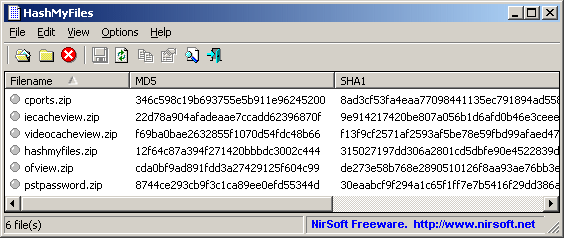
Using HashMyFiles
HashMyFiles doesn't require any installation process or additional DLL files.
In order to start using it, simply run the executable file (HashMyFiles.exe).
After you run it, you can add files and folders that you want to view their MD5/SHA1 hashes.
You can do it by using the 'Add File' and 'Add Folder' options under the File menu, or simply by draging
the files and folder from Explorer into the main window of HashMyFiles.
After adding the desired files, you can copy the MD5/SHA1 hashes to the clipboard, or save the hashes list into
text/html/xml file.
Explorer Context Menu
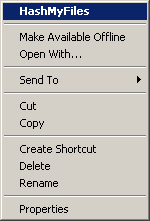
HashMyFiles can also be used directly from Windows Explorer.
In order to enable this feature, go to the Options menu, and choose the 'Enable Explorer Context Menu' option.
After you enable this feature, you can right-click on any file or folder on Windows Explorer, and choose the
'HashMyFiles' item from the menu.
If you run the HashMyFiles option for a folder, it'll display the hashes for all files in the selected folder.
If you run the HashMyFiles option for a single file, it'll display only the hashes for that file.
Notice: Static menu items of Explorer may not work well with multiple files.
If you use the HashMyFiles context menu with multiple files, it's possible that multiple instances of HashMyFiles will be opened.
If you want to get the hash of multiple files from Explorer window, use Copy & Explorer Paste, or drag the files
into the HashMyFiles window.
Command-Line Options
|
/file <Filename | Folder | Wildcard>
| Specifies the filename, folder, or wildcard that you want to hash.
| |
/files <Filename> <Filename> <Filename> ...
| Specify multiple filenames, folders, or wildcards that you want to hash.
| |
/folder <Folder>
| Specifies a folder and all its subfolders.
| |
/wildcard <Full Path Wildcard> <Subfolder Depth>
|
Specifies wildcard with full path (e.g: c:\folder\*.exe) and the depth of subfolders to scan.
For <Subfolder Depth> parameter: 0 = no subfolders, 1 = one level of subfolders, 2 = two level of subfolders, and so on... 1000 = Infinite number of subfolders.
| |
/virustotal <Filename>
|
Calculates the hash of the specified file and then opens it in VirusTotal Web site.
|
/MD5 {0 | 1}
/SHA1 {0 | 1}
/CRC32 {0 | 1}
/SHA256 {0 | 1}
/SHA512 {0 | 1}
/SHA384 {0 | 1}
|
Allows you to turn on/off the specified hash type (0 = Turn Off, 1 = Turn On).
For example:
HashMyFiles.exe /MD5 1 /SHA1 1 /SHA256 0
| |
/cfg <Filename>
|
Start HashMyFiles with the specified configuration file.
For example:
HashMyFiles.exe /cfg "c:\config\hmf.cfg"
HashMyFiles.exe /cfg "%AppData%\HashMyFiles.cfg"
| |
/stext <Filename>
| Save the hashes list into a regular text file.
| |
/stab <Filename>
| Save the hashes list into a tab-delimited text file.
| |
/stabular <Filename>
| Save the hashes list into a tabular text file.
| |
/shtml <Filename>
| Save the hashes list into HTML file (Horizontal).
| |
/sverhtml <Filename>
| Save the hashes list into HTML file (Vertical).
| |
/sxml <Filename>
| Save the hashes list to XML file.
| |
/scomma <Filename>
| Save the hashes list to comma-delimited file.
| |
/sort <column>
|
This command-line option can be used with other save options for sorting by the desired column.
If you don't specify this option, the list is sorted according to the last sort that you made from the user interface.
The <column> parameter can specify the column index (0 for the first column, 1 for the second column, and so on) or
the name of the column, like "Filename" and "Identical".
You can specify the '~' prefix character (e.g: "~Identical") if you want to sort in descending order.
You can put multiple /sort in the command-line if you want to sort by multiple columns.
| |
/nosort
|
When you specify this command-line option, the list will be saved without any sorting.
| |
/SaveDirect
|
Save the hashes list in SaveDirect mode.
For using with the other save command-line options ( /scomma, /stab, /sxml, and so on...) When you use the SaveDirect mode,
the hash lines are saved directly to the disk, without loading them into the memory first. This means that you can save a list with large amount of hashes into your disk without any memory problem, as long as you have enough disk space to store the saved file. The drawback of this mode: You cannot sort the lines according to the column you choose with /sort command-line option.
|
Examples:
HashMyFiles.exe /file "c:\temp\*.zip" /shtml "c:\temp\1.html"
HashMyFiles.exe /file "d:\temp\myfile.zip" /stab "d:\temp\myfile.txt"
HashMyFiles.exe /file "d:\my files"
HashMyFiles.exe /files "c:\temp\*.zip" "c:\temp\1234.exe" "c:\temp\Hello.exe" /shtml "c:\temp\1.html"
HashMyFiles.exe /folder "c:\temp" /shtml "c:\temp\1.html"
HashMyFiles.exe /folder "c:\temp" /shtml "c:\temp\1.html" /sort "Identical" /sort "Filename"
HashMyFiles.exe /folder "c:\temp" /shtml "c:\temp\1.html" /sort ~1
HashMyFiles.exe /wildcard "c:\temp\*.zip" 1 /shtml "c:\temp\1.html"
HashMyFiles.exe /SaveDirect /folder "c:\temp" /scomma "c:\temp\1.csv"
Translating HashMyFiles to other languages
In order to translate HashMyFiles to other language, follow the instructions below:
- Run HashMyFiles with /savelangfile parameter:
HashMyFiles.exe /savelangfile
A file named HashMyFiles_lng.ini will be created in the folder of HashMyFiles utility.
- Open the created language file in Notepad or in any other text editor.
- Translate all string entries to the desired language.
Optionally, you can also add your name and/or a link to your Web site.
(TranslatorName and TranslatorURL values) If you add this information, it'll be
used in the 'About' window.
- After you finish the translation, Run HashMyFiles, and all translated
strings will be loaded from the language file.
If you want to run HashMyFiles without the translation, simply rename the language file, or move
it to another folder.
License
This utility is released as freeware.
You are allowed to freely distribute this utility via floppy disk, CD-ROM,
Internet, or in any other way, as long as you don't charge anything for this.
If you distribute this utility, you must include all files in
the distribution package, without any modification !
Disclaimer
The software is provided "AS IS" without any warranty, either expressed or implied,
including, but not limited to, the implied warranties of merchantability and fitness
for a particular purpose. The author will not be liable for any special, incidental,
consequential or indirect damages due to loss of data or any other reason.
Feedback
If you have any problem, suggestion, comment, or you found a bug in my utility,
you can send a message to nirsofer@yahoo.com
HashMyFiles is also available in other languages. In order to change the language of
HashMyFiles, download the appropriate language zip file, extract the 'hashmyfiles_lng.ini',
and put it in the same folder that you Installed HashMyFiles utility.
|
|