| |

| NK2Edit v3.46 - Edit AutoComplete files of Microsoft Outlook
Copyright (c) 2010 - 2023 Nir Sofer
|
Introduction
Every time that you type an email address or name in the message window of MS-Outlook, it automatically offer
you a list of users and email address that you can choose. This feature is known as 'AutoComplete' and Outlook
automatically build this emails list according to user activity and save it into a file with .NK2 extension.
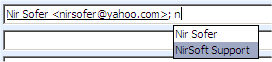
In some circumstances, you may need to repair or modify the values appeared in the AutoComplete list, or you may want to
remove unwanted email addresses and/or to add new email addresses.
MS-Outlook doesn't provide any ability to edit this AutoComplete list, so this is where NK2Edit software can help you.
NK2Edit Features
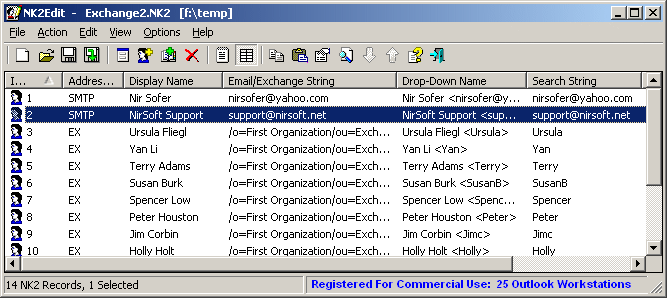
- Easily modify or fix all information stored in the NK2 file, including the display name,
the email address, the exchange string, the Drop-Down display name, and the search string.
- Easily remove unwanted single quote characters from the display name and from the Drop-Down list.
- Delete unwanted emails, as well as add new emails, by typing them manually, or by choosing them from the address book of Outlook.
- Copy NK2 records from one NK2 file to another - simply by copy and paste !
- Build a completely new NK2 file and add the desired emails into it, by typing them manually, by adding them from your address book, or by copying records from another NK2 file.
- Extract data from corrupted NK2 files that Outlook cannot read anymore (When Outlook AutoComplete stopped working) and even repair them so Outlook will be able to read them again.
- Export all data stored in the NK2 file into a special Unicode text file in a structure similar to .ini file of Windows.
You can open it any text editor you like, make the changes you need, and then convert it back into NK2 file that Outlook can use.
- Export the emails information stored inside NK2 file into HTML/Text/csv/xml file.
- Export the emails information stored inside NK2 file directly into the contacts of Outlook.
- Copy the selected NK2 records in tab-delimited format and then paste the information into Excel.
- Change the order of the records in the NK2 file, which also affects the order they appear in the drop-down.
You can also sort the list in alphabetical order of the Drop-Down display names. (However, be aware that Outlook change
the order again when the user send emails)
- Command-Line Support: Write simple scripts that can add, remove, or modify records inside the NK2 file, without displaying any user interface.
- NK2Edit is a portable application that can be used from any computer with Windows operating system (Starting from Windows 2000) without need of any installation process,
and without making changes in the Registry.
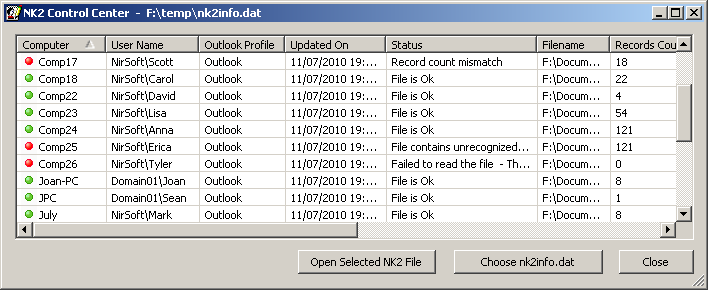
- NK2 Control Center - Allows you to watch to location and the status of all NK2 files
in your organization.
System Requirements
- NK2Edit works on any version of Windows, starting from Windows 2000 and up to Windows 11.
NK2Edit is a Unicode based application, and thus it cannot work under Windows 95/98/ME.
- NK2Edit can read, write, and create NK2 files for Outlook 2003, Outlook 2007, Outlook 2010, Outlook 2013, Outlook 2016, Outlook 2019, Outlook 2021, and Outlook 2024.
- Outlook installation is not required on the computer that you run NK2Edit, except of some features that require access to Outlook profile, like "Add Records From Address Book" and "Export To Message Store" , which cannot work without Outlook.
NK2Edit can also be used to open, edit, and save NK2 files on remote computers in your network, as long as you have read/write permission to the remote NK2 file.
License
The license for using NK2Edit is different from most of other NirSoft utilities:
- The basic version of NK2Edit (Without the commercial license features) is completely free for personal use at your home and for using in any charity/non-profit organization.
- If you need to use NK2Edit in a company/business organization, you can freely try and evaluate the NK2Edit software for 14 days and
verify that the software really works as you expect.
- If after the 14-days of evaluation you decide to continue using it, you have to purchase a commercial license
according to the number of workstations with Outlook that NK2Edit is needed for opening or editing their NK2 file.
For more information about commercial licenses, click here
Download links are on the bottom of this page
Disclaimer
The software is provided "AS IS" without any warranty, either expressed or implied,
including, but not limited to, the implied warranties of merchantability and fitness
for a particular purpose. The author will not be liable for any special, incidental,
consequential or indirect damages due to loss of data or any other reason.
NK2Edit vs NK2View
NK2View was originally released as a small free tool for viewing the content of NK2 files.
After many requests from users, I added some limited editing features that allowed
the users to remove and add records into the NK2 file. However, NK2View was not designed
to be a real NK2 editor, and for some NK2 files, it failed to add/remove records properly.
As opposed to NK2View, NK2Edit was designed as a real NK2 editor that can make any change
you need and then save it back into a valid NK2 file.
Using NK2Edit Without Installation
NK2Edit can be used without any installation process.
Simply download the zip file of NK2Edit, extract the files into any folder you like, and run the executable file (NK2Edit.exe) .
You can also put the files of NK2Edit in a shared network drive, and run it from any workstation in your company.
Whenever you want to remove NK2Edit from your system, simply delete the files of NK2Edit (NK2Edit.exe, NK2Edit.cfg, and NK2Edit.chm).
NK2Edit doesn't write anything to the Registry or other places, so deleting the files is enough for removing NK2Edit
completely from your system.
Using NK2Edit With Install/Uninstall Support
If you want, you can also download NK2Edit with installer (NK2Edit_setup.exe), and install NK2Edit like any other
software. The installer of NK2Edit automatically add a new group to the start menu of Windows and it also
add a new entry to the uninstall list of Windows, so you'll be able to easily uninstall NK2Edit if it's needed.
x64 Version of NK2Edit
NK2Edit has 2 features that extract address book/mailbox information directly from Microsoft Outlook:
"Add New Records From Address Book" and "Add Records From Mailbox Recipients".
If you use the 64-bit version of Microsoft Outlook, you must download and use the x64 of NK2Edit in order
to use the above 2 features.
In all other cases, you should use the 32-bit version of NK2Edit.
Be aware that if you have 64-bit Windows installation, but the installation of MS-Outlook is 32-bit,
you must use the 32-bit version of NK2Edit in order to use the above 2 features.
Before You Start
- When you edit your NK2 file, remember to verify that the executable of Outlook (Outlook.exe) is not running.
If you edit the NK2 file when Outlook is opened, Outlook may save the NK2 file and overwrite your changes.
- Backups of NK2 file: When you make changes in your NK2 files, it's always important to keep a backup of the original
NK2 file, so if something goes wrong and the modified NK2 doesn't work properly, you'll be able to restore the original one.
When you save your NK2 changes in the first time, NK2Edit automatically creates a backup of the original NK2 file with NK2Edit.First.bak extension.
To restore the original NK2 file, simply use the 'Restore Backup From First Save' option.
You can disable the automatic backup by unchecking the 'Automatically Backup On First Save' in the Options, although
it's recommended to keep this options enabled.
In addition to the automatic backup of the first save, NK2Edit also allows you to create a backup when you think it's important.
Simply use the 'Backup Current NK2 File' option, and NK2Edit will create a backup file with .NK2Edit.bak extension.
- Know the limitation for number of records in NK2 files:
Outlook 2003/2010/2013 limits the maximum number of records in NK2 files to 1000, while
Outlook 2007 limits the maximum number of records to 2000.
When you edit your NK2 files, you should keep the number of records below these
limits, or alternatively, change the maximum records limit in the Registry. See Also: Size limit of Outlook AutoComplete (.NK2) file.
- Starting from Outlook 2010, the AutoComplete file is saved with .dat extension
and its header data is a little different from the previous versions of Outlook.
In order to save the AutoComplete file for Outlook 2010 and later, you have to save the file
with .dat extension, so NK2Edit will save it with the new file header of Outlook 2010.
- If you're going to use NK2Edit with Outlook 2010 and later, you should read the following information page about the AutoComplete changes made
in Outlook 2010:
AutoComplete feature changes on Outlook 2010 and later versions
Versions History
- Version 3.46
- Fixed issue: When copying data to the clipboard or exporting to tab-delimited file, every line contained an empty field in the end of the line.
- Added the icon of NK2Edit to all dialog-boxes.
- Version 3.45
- Fixed the quick-filter text-box to copy to the clipboard when pressing Ctrl+C.
- Fixed a few high DPI mode issues.
- When running a script, every script line is now added to the log file.
- Version 3.44
- Added option to change the sorting column from the menu (View -> Sort By). Like the column header click sorting, if you click again the same sorting menu item, it'll switch between ascending and descending order. Also, if you hold down the shift key while choosing the sort menu item, you'll get a secondary sorting.
- Version 3.43
- Added 'Copy Clicked Cell' option to the right-click context menu, which copies to the clipboard the text of cell that you right-clicked with the mouse.
- Version 3.42
- Updated to work properly in high DPI mode.
- Version 3.41
- Added accelerator key to the 'Add Records From Mailbox Recipients' option (Ctrl+F4).
- Version 3.40
- Fixed issue: In previous versions, the 'Replace' command of NK2Edit scripts replaced only the 'Email' and 'Display Name' fields instead of replacing all major fields.
Starting from this version, it replaces the specified string in all fields. If from some reason you want to keep this command in the previous mode, change the
value of ReplaceCommandMode from 1 to 0 in nk2edit.cfg
- Version 3.39
- Fixed to remember the location/size of the Edit Record window properly, when it's not in the primary monitor.
- Version 3.38
- Added 'Select All' and 'Deselect All' to the 'Column Settings' window.
- Version 3.37
- Fixed the 'Convert EX To SMTP' feature to work properly with 'GOOG' records.
- Version 3.36
- Fixed the Raw Text Edit Mode to use the appropriate font size in high DPI mode.
- Version 3.35
- Added 'Quick Filter' feature (View -> Use Quick Filter or Ctrl+Q). When it's turned on, you can type a string in the text-box added under the toolbar and NK2Edit will instantly filter the AutoComplete items, showing only items that contain the string you typed.
- Version 3.30
- Fixed issue: NK2Edit failed to set the sending format for SMTP record converted from EX record ('Convert EX to SMTP' option and EXToSMTP script command).
- Also, the sending format of the SMTP records created by the 'Convert EX to SMTP' option (and EXToSMTP script command) is now 'Automatic' (In Previous versions, the
sending format was 'Outlook Rich Text' due to the specified bug...)
- Version 3.28
- Added 'WaitOutlookClose' script command
- Version 3.27
- Added 'Auto Size Columns On File Load' option (Under View menu).
- Version 3.26
- Added /import_from_message_store command-line option, which saves the AutoComplete data stored inside the message store (PST file or Exchange server) of the current Outlook profile to the specified file.
(This option is the opposite of /export_to_message_store )
- Version 3.25
- Added 'Import From Message Store' option under the File menu, which loads the AutoComplete data directly from the message store (PST file or Exchange server) of the current Outlook profile.
(This option is the opposite of 'Export To Message Store')
- You can now use the /LogFile command-line option without any other command (For creating a log file while using the GUI)
- Version 3.21
- The search/replace records are now marked with a darker color. It's also possible to set the search/replace text/background colors from the .cfg file (SearchReplaceBackColor and SearchReplaceTextColor values)
- Version 3.20
- Added new option: 'EX Records AutoFill - Drop Trailing Numbers'. If this option is turned on while NK2Edit automatically fills the 'Search String' and 'Drop-Down Name' fields of MS-Exchange record, trailing numbers are removed from the user name.
For example, if the email string is "/o=First Organization/ou=Exchange Administrative Group/cn=Recipients/cn=John Doe234", the 'Search String' field set by NK2Edit will be 'John Doe' instead of 'John Doe234'.
- Added 2 new optional parameters to the Add command of NK2Edit scripts: 'Drop-Down Name' and 'Search String'. For example:
Add "EX" "/o=First Organization/ou=Exchange Administrative Group/cn=Recipients/cn=John Doe1" "John Doe" 0 "John Doe <John Doe>" "John Doe"
- Version 3.16
- Added SHA-256 digital signature, in order to avoid error messages on Windows 7 or later.
- Version 3.15
- You can now use 'And' in the 'If' command of NK2Edit script. For example, in order to delete EX records that their SMTP address is empty:
if SMTPEmail Equal "" And AddressType Equal "EX" delete
- Version 3.12
- Added 'New NK2Edit Instance' under the File menu, for opening a new window of NK2Edit.
- Version 3.11
- Added RemoveProperty script command, which allows you to remove an optional property from all records of the AutoComplete file.
For example, in order to remove the certificate property 3a701102 (PR_USER_X509_CERTIFICATE):
NK2Edit.exe /LogFile f:\temp\log1.txt /script_express c:\temp\1.nk2 'RemoveProperty 3a701102'
- Version 3.10
- Added a new field to the simple CSV file, which specifies the SMTP address of MS-Exchange records.
- Version 3.09
- Added more accelerator keys.
- Version 3.08
- The detected version of Outlook is now displayed in the about window.
- Version 3.07
- Added /SetOutlookMaxRecords option, which allows you to easily change the maximum numbers of AutoComplete records allowed by Outlook, from command-line.
- Version 3.06
- Fixed bug: NK2Edit failed to remember the last size/position of the main window if it was not located in the primary monitor.
- Version 3.05
- Added TrimSpaces command to NK2Edit scripts, which allows you to trim leading/trailing whitespaces from the email addresses and display names.
- Version 3.00
- Added 'Set Outlook AutoComplete Limit' option (Under the Help menu).
This option allows you to easily change the maximum numbers of AutoComplete records allowed by Outlook.
NK2Edit automatically detects the current installed version of Outlook and updates the correct Registry value.
- Version 2.96
- NK2Edit now detects the installed version of Outlook and adds this information to the log file (/LogFile command-line option).
- Version 2.95
- Added 'EmailString' field to NK2Edit scripts. This field represents the SMTP email address string for both SMTP records and Exchange records.
- Version 2.94
- Fixed bug: NK2Edit failed to merge MAPIPDL records.
- Version 2.93
- Added secondary sorting support: You can now get a secondary sorting, by holding down the shift key while clicking the column header. Be aware that you only have to hold down the shift key when clicking the second/third/fourth column. To sort the first column you should not hold down the Shift key.
- Version 2.92
- Fixed the record edit dialog-box to select all characters of focused text-box when using the tab key to move to the next field.
- Version 2.91
- Added 'Copy As Simple CSV' option.
- Version 2.90
- The Paste option (Ctr+V) now also accepts text in a simple comma-delimited format, for example:
SMTP, NirSoft Support, support@nirsoft.net
EX, NirSoft Admin, /o=NirSoft/ou=First Administrative Group/cn=Recipients/cn=Admin
- Version 2.87
- NK2Edit now displays an error message if the log file (/LogFile command-line option) cannot be created.
- Version 2.86
- The first line of the log file generated by NK2Edit now also provides the current version of NK2Edit.
- Version 2.85
- Added 'Clear Recent Files List' option.
- Version 2.84
- The first line of the log file generated by NK2Edit now provides the computer name and user name information.
- Version 2.83
- The 'About' window now displays the build that you're running: 32-bit or 64-bit.
- Version 2.82
- Fixed a bug with /SkipCommandLineNoProfiles command-line option on Outlook 2013.
- Version 2.81
- Added /SkipCommandLineNoProfiles command-line option. If it's set to 1, then the /script, /script_express, and /export_to_message_store commands will not
do anything if there are no Outlook profiles on the computer you run it, for example:
NK2Edit.exe /SkipCommandLineNoProfiles 1 /LogFile "express_log.txt" /script_express $default 'If AddressType equal "EX" EXToSMTP' 'If Domain Equal "gmail.com" Delete'
- Version 2.80
- Added /RestoreBackup command-line option, which restores the last backup made by NK2Edit on the default AutoComplete file.
- Version 2.78
- Added /CompleteMessage command-line option, which instructs NK2Edit to display a message to the user when a command-line action is completed, for example:
NK2Edit.exe /CompleteMessage "Finished executing the script of NK2Edit" /LogFile "express_log.txt" /script_express $default 'If AddressType equal "EX" EXToSMTP' 'If Domain Equal "gmail.com" Delete'
- Version 2.77
- Added 'Copy Emails Only' option, which copies the emails of all selected records to the clipboard, each email
in a separated line.
- Version 2.76
- NK2Edit now displays an error message if it cannot change the sending format ('Change Sending Format To...' action).
- Version 2.75
- Added /WarnIfOutlookRunning command-line option. You can use it with /script , /script_express , and other command-line option to
warn the user if Outlook is running.
- Added /TimestampBackup command-line option. You can use it with /script , /script_express , and other command-line option to create
a separated backup every time that the command-line is executed.
The backup filename is generated with a timestamp, for example:
1.nk2.20130813111927.NK2Edit.bak
- Version 2.72
- Added option to change the characters encoding of the files generated by the 'Export Selected Items' option and by the
export command-line options (/stab, /scomma, /shtml and so on...)
- UTF-8, UTF-16, or Ascii
- You can also change the characters encoding from command-line by using the /ExportCharEncoding command-line option.
For example, in order to export all AutoComplete items to csv file with UTF-8 encoding:
NK2Edit.exe /ExportCharEncoding 1 /scomma "simple.csv"
- Simple CSV File - Changed the default encoding to UTF8 and removed space characters, so this file will be opened properly in Excel.
- Version 2.71
- Added /LogFileAppend command-line switch, which is very similar to /LogFile command-line switch, but instead of overwriting the file,
/LogFileAppend appends the new log lines to the existing file.
- Version 2.70
- Added new package containing both 32-bit and 64-bit builds of NK2Edit (In addition to the separated 32-bit and 64-bit downloads). This package contains a third executable (named nk2edit.exe) which automatically
executes the correct .exe file according to the installed version of Outlook.
Both executables (32-bit and 64-bit) share the same configuration file (nk2edit.cfg) if they are executed from nk2edit.exe
This package might be useful for you if you have mixed environment with some computers running Outlook 32-bit and some computers running Outlook 64-bit.
For more information: Using NK2Edit in mixed environment of computers running Outlook 32-bit and Outlook 64-bit
- Version 2.68
- Added Like operator to the NK2Edit scripts, which allows you to compare a field value using wildcard, for example:
if Email Like "a???@*.net" delete
- Version 2.67
- When exporting the AutoComplete file of Outlook into the Exchange message store ( /export_to_message_store command-line option)
NK2Edit automatically sets the version of the file to 12 if the original AutoComplete file has an older version number.
- Version 2.66
- Added secondary sorting for the Domain column. When clicking the header of the domain column, the list is first sorted by the domain, and then by the email address.
- Version 2.65
- Added /AutoExportToMessageStore command-line option. You can use it to automatically export the AutoComplete data to the message
store of Outlook, On Outlook 2010 or greater. For example:
NK2Edit.exe /AutoExportToMessageStore 1 /script "f:\scripts\myscript.txt" $default
- Added /script_express command-line option, which allows you to run a small script without using external script file, for example:
NK2Edit.exe /LogFile "express_log.txt" /script_express $default 'If AddressType equal "EX" EXToSMTP' 'If Domain Equal "gmail.com" Delete'
- Version 2.60
- Fixed bug: NK2Edit failed to import MAPIPDL records (distribution lists) when using /import_address_book and /sync_address_book command-line options.
- You can now specify multiple address types in /import_address_book and /sync_address_book command-line options, for example:
NK2Edit.exe /import_address_book $default "Contacts" "MAPIPDL+SMTP" 2000
- Version 2.57
- Added 'RemoveLinkToProfile' action for using in NK2Edit scripts, for example:
If AddressType equal "SMTP" RemoveLinkToProfile
- Version 2.56
- Added 'Remove Link To Outlook Profile' option. This option is useful for SMTP records that are linked to specific Outlook profile (Linked To Profile = 'Yes')
After using this option to remove the linkage to Outlook profile, you'll be able to safely copy the records into another AutoComplete file.
- Version 2.55
- Added 'EntryID' column.
- Added 'Linked To Profile' column. If the value under this column is Yes, it means that the record is linked to a contact or address book item on your Outlook profile, and it'll
stop working if you copy this record into another Outlook profile.
- Version 2.53
- You can now resize the 'Edit Record' window. Also, the last size and position of this window is saved to the config file, so this window is opened
with the last size/position you chose.
- Version 2.52
- Fixed the flickering occurred while scrolling the AutoComplete records list.
- Version 2.51
- A warning line is now added to log (/LogFile command-line option) when NK2Edit fails to locate the default AutoComplete file.
- Version 2.50
- Added 'SMTP Address' field to the 'Edit Record' window (For Exchange records only).
- Version 2.45
- Added support for replacing string of 'SMTP Address' field in the 'Find & Replace' option (Ctrl+P) .
- Version 2.43
- Added Weight field for the 'if' command in NK2Edit script, for example to delete all records with Weight lower than 10:
if Weight LessThan 10 delete
- Version 2.42
- Added DisplayType field for the 'if' command in NK2Edit script.
You can use it to delete all records with specific 'Display Type' value.
You can use the following numeric values: 0 for Mail User, 1 for Distribution List, 5 for Private Distribution List, and 6 for Remote User.
For example, to delete all non-private distribution lists:
if DisplayType Equal 1 delete
- Version 2.41
- Added 'Use SMTP Address In AutoFill Feature' option (Under the Options menu).
This feature affects the way that NK2Edit automatically fills the Drop-Down Name and the Search String of EX records.
If it's turned on, NK2Edit will use the SMTP address to fill the Drop-Down Name and the Search String.
If it's turned off, MK2Edit will use the Exchange account name, like in previous versions of NK2Edit.
For example: If this option is turned on, the Drop-Down Name will be 'Nir Sofer <nirsofer@nirsoft.net>'.
If this option is turned off, the Drop-Down Name will be 'Nir Sofer <NIRS>'.
- Version 2.40
- Added 'Open Selected Address In Outlook' option (Under the File menu and the context menu).
This option allows you to open the selected email address in Outlook.
If this email address has an enrty inside the address books of your Outlook profile, this
address book entry will be displayed. Otherwise, Outlook will open a simple dialog-box with the display name and email address.
- Version 2.38
- Fixed bug: On a few systems, NK2Edit crashed immediately on start.
- Version 2.37
- Added 'Automatically Export To Message Store' option (For Outlook 2010). If it's turned on, and you save the default AutoComplete file, NK2Edit will
automatically export the saved file to the message store of Outlook (PST file or Exchange)
- Version 2.36
- Added 'Auto Size Columns+Headers' option.
- Fixed issue: Dialog-boxes opened in the wrong monitor, on multi-monitors system.
- Version 2.35
- Added 'Export To Message Store' option (Only for Outlook 2010). Outlook 2010 maintains 2 copies of the AutoComplete data. One copy in the local file system (Stream_Autocomplete_*.dat), and another copy
on the message store of your Outlook profile (PST file or Exchange server). This option allows you to copy the local AutoComplete .dat file into the message store of Outlook, to ensure that
Outlook will not overwrite your changes.
- Version 2.30
- Fix for the 'Open Recent File' menu: When using the 'Save As' option to save into a new filename, the new filename will be added to the recent files menu.
- Version 2.29
- Fixed bug: For SMTP records that are linked to a contact, NK2Edit displayed that the sending format is
'Outlook Rich Text', while it should be empty, because this kind of records doesn't contain the sending format byte.
- Version 2.28
- Fixed bug: A script line that deletes all records with empty domain failed to work:
If Domain Equal "" Delete
- Version 2.27
- Fixed the /import_full_nk2 command-line option to work with environment variables (e.g: %TEMP%).
- You can now generate a log file (/LogFile command-line parameter) with /import_full_nk2 command-line option.
- Version 2.26
- Added more accelerator keys (in the Action menu).
- Version 2.25
- Added 'Allow To Overwrite Read-Only File' option. If it's turned on, NK2Edit will be able overwrite existing AutoComplete file
even if it has a Read-Only attribute.
- Version 2.20
- Added /export_to_message_store comand-line option (For Outlook 2010).
This command-line option copies the AutoComplete file stored in the local hard-drive (Stream_Autocomplete*.dat ) into the message store of the
Exchange server (For MS-Exchange profiles) or into the .pst file (For Outlook profiles based on .pst file)
- Version 2.16
- Fixed a typo of the word 'Automatic' under the 'Sending Format' column.
- Version 2.15
- Added 'Convert EX to SMTP', under the Action menu, which converts the selected EX records to SMTP records
- Version 2.11
- Added option to set the sending format with NK2Edit scripts, by using 'Set SendingFormat = {value}'.
The following values can be used:
- 0 - Send using Outlook Rich Text Format
- 1 - Let Outlook decide the best sending format
- 7 - Send Plain Text Only
Example:
If AddressType equal "SMTP" Set SendingFormat 1
- Version 2.10
- Added 'Sending Format' column, which displays the format that Outlook will use when sending email message to the specified SMTP recipient:
Automatic (Let Outlook decide...), Outlook Rich Text, or Plain Text. This column is only valid for SMTP records.
Be aware that if the 'Sending Format' is Outlook Rich Text, the recipient that receives the message will get
winmail.dat attachment if he doesn't have MS-Outlook or other email client that supports this message format.
- Added 'Change Sending Format To...' (Under the Action menu), which allows you to change the sending format of the selected recipients.
- Version 2.06
- Fixed issue: When NK2Edit failed to read the script file (/script command-line option), 'Error 0' message was added to the log file, instead of the
read error number.
- Version 2.05
- Added /import_full_nk2 command-line option, which imports all records of the specified nk2 file into the default Outlook profile.
(Be aware that this action overwrites all the existing AutoComplete records with the records of the specified nk2 file.)
- Version 2.03
- Added Unicode byte order mark to the log file, so it'll be opened properly with all text viewers/editors.
- Version 2.02
- Added /CurrDirExe command-line option, which changes the current directory used for all other command-line options.
By default, when you specify a filename without a path (For example: NK2Edit.exe /script "myscript.txt" $default ""),
NK2Edit searches the file in the current directory returned by Windows operating system. In most cases, the current directory is where the .exe
file of NK2Edit is located, but in some other cases (For example, when running NK2Edit from RunOnce Registry key), the current directory might be different.
If /CurrDirExe is specified, NK2Edit will search the file in the same folder where NK2Edit.exe is located, even if the current directory of
Windows operating system is different.
- Version 2.01
- Fixed issue: When using the combination of /script and /LogFile command-line options, without specifying the third
parameter of /script (For example: NK2Edit.exe /script "f:\scripts\myscript.txt" $default /LogFile "f:\%computername%.txt" ),
the script command was failed because the /LogFile was taken as the third parameter.
- Version 2.00
- Added 'Open Recent File' menu (under the File menu), which allows you to easily choose
the NK2 file to open from a list of the last 10 NK2 files you previously opened.
- Version 1.96
- When trying to connect to Outlook 2010 ('Add Records From Address Book' and 'Add Records From Mailbox Recipients' options)
with the wrong build of NK2Edit (NK2Edit 32-bit with Outlook x64 or NK2Edit x64 with Outlook 32-bit),
NK2Edit now displays informative error message about the problem.
- Version 1.95
The /LogFile command-line option now can be used with /import_csv_file command-line option.
- Version 1.94
The /LogFile command-line option now can be used with /generate_new_nk2 command-line option.
- Version 1.93
The /LogFile command-line option now can be used with /sync_address_book command-line option.
- Version 1.92
- The /LogFile command-line option, which generates a log file with details about every action made by NK2Edit
and information about errors/problems, now can be used with /export_to_contacts and /import_address_book command-line option.
For example:
nk2edit.exe /logfile "import_address_book_log.txt" /import_address_book "contacts.nk2" "Contacts" "All" 2000
NK2Edit.exe /logfile "export_to_contacts_log.txt" /export_to_contacts $default
- Version 1.91
- Added Drag & Drop support: You can now open 2 instances of NK2Edit with 2 different NK2 files, and then
drag NK2 items from one window to the other.
- Version 1.90
- Added the ability to set the weight value from a script.
In the AutoComplete drop-down of Outlook, NK2 recipient with higher weight value is displayed above all other recipients with lower weight value.
So if you set the weight value of important emails to very high number, these emails will be displayed in the top of the AutoComplete list, above all other emails.
Example for a script line that sets a new weight value:
if Email Contain "@mydomain.com" set weight 1000000
- Version 1.87
- In 'Add Records From Address Book' option - You can now also import
private distribution lists from your contacts (records with MAPIPDL address type).
- Version 1.86
- Fixed problem with the 'Export Records To Outlook Contacts' feature:
In previous versions, NK2Edit filled only the 'Full Name' field, but the
First/Middle/Last Name fields remained empty. (this may cause BlackBerry / Outlook contacts synchronization problem)
Starting from this version, NK2Edit automatically splits the display name of the NK2 record into
First/Middle/Last Name fields, and fills the contact with these fields.
This change also affects the /export_to_contacts command-line option.
- Version 1.85
- Added /ScriptInput command-line option. It allows you to create a script with
parameters, and load the parameters from tab-delimited or comma-delimited file (csv).
For more information about this new feature: Script With Parameters.
- Version 1.80
- Added EXToSMTP action for the 'if' command, which allows you to
convert EX (MS-Exchange) record into SMTP record.
This action only works if the 'SMTP Address' field stores the correct SMTP address of the EX record.
- Version 1.79
- 'Add New Record' window - After pressing Ok, the record is added and then this window is
opened again for adding the next record. This change allow you to add multiple records more easily.
- Version 1.78
- Added 'Fix Drop-down Name And Search String' feature (In the Action menu),
which allows you to fix the Drop-down Name and Search String values for the selected
records, accoring to the email and display name values.
- Version 1.77
- Added more accelerator keys (in the menus).
- Version 1.76
- Added the option to choose the double-click action - Edit Record or Properties window.
- Version 1.75
- Added /sync_address_book command-line option.
This command is very similar to /import_address_book command, but in addition to
importing all emails from the address book into the NK2 file, it also deletes emails from the NK2 file that
cannot be found inside the address book.
- Version 1.74
- Fixed bug: NK2Edit failed to save a record properly when switching
from existing SMTP record to EX record or from existing EX record to SMTP record.
- Version 1.73
- Fixed problem with /import_address_book command-line option:
In some Outlook/Exchange configurations, NK2Edit imported only some of the addresses
of the global address list.
- Version 1.72
- Added EndWith and NotEndWith operators to the 'If' command of NK2 Scripts
- Version 1.71
- Added 2 new 'Records to scan' options in the Find & Replace window - 'All SMTP Records' and 'All Exchange Records'.
- Version 1.70
- Added 'Copy As Emails List' option (Ctrl+L) which allows you to copy to the clipboard the selected emails as
semicolon delimited list that can be used in the To/CC fields of Outlook or other email software.
- Version 1.69
- Added 'New Email To Selected Contacts' (Ctrl+F2) under the File menu.
You can select one or more SMTP addresses from the NK2 records list, and then use this option
to compose a new message in your default email client for the selected addresses.
- Version 1.68
- Added 'Warn When Outlook Process is Running' option. When it's turned on, NK2Edit warns you if you try to save the default NK2 file and Outlook is currently running in the background.
- Version 1.67
- Added new script actions: ReplaceCS and ReplaceFieldCS.
- Version 1.66
- Added new script elements for the 'If' command:
Domain (field name), LengthRange (Operator), and IsNumber (Operator).
- Version 1.65
- Added 'Merge With Another NK2 File' option (In Action menu), which allows you to easily merge all records from another NK2 file
into the currently opened file.
- Version 1.62
- Added 'Mark Odd/Even Rows' option, under the View menu.
When it's turned on, the odd and even rows are displayed in different color,
to make it easier to read a single line.
- Version 1.61
- Added 'Show Selected SMTP/EX Counter' option (under the View menu).
When it's turned on, the number of selected SMTP records and EX (Exchange) records is displayed
in the bottom status bar.
- Version 1.60
- Added new file type into 'Export Selected Items' option - Simple csv file.
This created csv file can be used with 'Add Records From Simple csv File' option
to import back the emails into another NK2 file.
- Added /ssimplecsv command-line option to export all records of the NK2 into
a simple csv file.
- Version 1.56
- The import feature added in the previous version now also supports UTF8 files (with byte order mark - EF BB BF)
- Version 1.55
- Added 'Add Records From Simple csv File' option, which allows you to import addresses
from a simple csv file into your NK2 file. See also: Import NK2 addresses from a simple comma-delimited (csv) text file
- Added /import_csv_file command-line option (for licensed version), which allows you to
import addresses from a simple csv without displaying any user interface.
- Version 1.51
- Added new command-line options to override the settings stored inside the configuration file (nk2edit.cfg).
For more information, see the 'More Command-Line Options' section in the NK2Edit Command-Line Options page
- Version 1.50
- Added /open_control_center and /load_config command-line options.
- Version 1.48
- When NK2Edit tries to save the NK2 file, and the file is locked by Outlook,
NK2Edit will now display easy to understand message that will recommend you to close Outlook.
- Version 1.47
- Added 'Save Question Instead of Discard Question' option.
When this option is turned on and you try to exit from NK2Edit or to open another file after you made some changes in the current opened file,
NK2Edit will ask you whether you want to save the changes in the current opened file. By default, when this option is turned off,
NK2Edit asks you whether you want to discard the nk2 file changes.
- Version 1.46
- Added /import_contacts_file command-line option (for licensed version),
which allows you to import emails/names from the Contacts csv file exported by Microsoft Outlook
or by other email software/service, like Yahoo or Gmail, without displaying any user interface.
- Version 1.45
- Added 'Add Records From Outlook Contacts csv File' option.
You can use it to import emails/names from the Contacts csv file exported by Microsoft Outlook
or by other email software/service, like Yahoo or Gmail.
- Version 1.43
- Added /logon_profile command-line option, which allows you to easily make
all contacts/mailbox related actions with the specified Outlook profile, instead of the default one.
- Version 1.42
- Added 'Error Messages On File Open' option. If you turn off this option
(By default, it's turned on), NK2Edit won't display error messages when you open
corrupted .nk2 file with missing records or other errors.
- Version 1.41
- Added 'Associate .nk2 Extension With NK2Edit' option.
When this option is selected, the .nk2 extension inside Windows Explorer is associated with NK2Edit,
which means that NK2 files with be displayed with the icon of NK2Edit and when you double-click on NK2 file,
it'll be opened with NK2Edit.
You can also add/remove the .nk2 file association from command-line - with /add_nk2_associate and /remove_nk2_associate
- Version 1.40
- Added 'Duplicate' column, which allows you to easily find duplicate NK2 records with the same
display name/email. Simply click the 'Duplicate' column header, and you'll find all duplicate records
in the top of the NK2 records list.
- Also Added 'Mark Duplicate Records' option. When this option is turned on,
all duplicate records are marked with different colors.
- Version 1.35
- Added /import_address_book command-line option (for licensed version) which allows
you to import all addresses stored in your Contacts/Address Book/Global Address List
directly into your NK2 file. Read the NK2Edit command-line options page
for more information.
- Version 1.32
- The position and the size of the NK2 Control Center window is now saved into the NK2 config file,
so it'll be loaded with the same size/position in the next time that you use NK2Edit.
- Version 1.31
- Added 'HTML Report' option in the context menu of the Control Center.
- Version 1.30
- Added 'Open Remote NK2 Folder' option in the context menu of the Control Center.
- Added 'Find' option in the context menu of the Control Center.
- Version 1.29
- Added /ccenter command-line option, which allows you to export the Control Center information
directly into a file, without displaying any user interface.
- Added /ccenterfile command-line option, which allows you to specify the Control Center information file
from command-line.
- Version 1.28
- Added 'Add Header Line To CSV/Tab-Delimited File' option. When this option is turned on, the column names are added
as the first line when you export to csv or tab-delimited file.
- Version 1.27
- Added 'Export Selected Items' option (export to text/html/csv/xml file) into the context menu of the Control Center.
- Version 1.26
- Added /export_to_contacts command-line option (for licensed version) which allows
you to export the emails from the specified NK2 file into the contacts of Outlook, without displaying any user
interface.
- Version 1.25
- Version 1.22
- Fixed a memory leak problem in 'Add Records From Mailbox Recipients' option.
- Version 1.21
- Fixed a crash problem in some command-line options.
- Version 1.20
- Added NK2 Control Center window, which allows to watch the status, the location, and general statistics of all
NK2 files on your organization. This feature requires to add a single line into the logon script to collect
the NK2 information.
- Version 1.13
- Added /generate_new_nk2 command-line option, which generates a completely new NK2 file
from the email addresses stored in the Outlook mailbox.
- Version 1.12
- Added 'Remove Double Quotes From All Display Names' option.
- Added RemoveDoubleQuotes command to NK2Edit scripts.
- Version 1.11
- When specifying empty string ("") in the export command-line options (/stab, /scomma, and so on)
the data is now sent to the standard output.
- Fixed some focus and tab order issues.
- Version 1.10
- Added 'Replace' option - Find and replace strings in all records of the NK2 file.
- Added 'Replace' and 'ReplaceField' script actions - for replacing strings inside the NK2 file by using automatic scripts.
- Version 1.07
- Added 'Sort Items By Weight Values' option.
- Added /copy_default to copy the nk2 file of the default Outlook profile into the specified location.
You can use this command-line option in the logon script of every user to create a backup of all NK2 files on the server (For licensed version only)
- Added /merge_files to merge 2 nk2 files from command-line. (For licensed version only)
- Version 1.06
- Fix bug: "The profile name is not valid" error message displayed when using
'Add Records From Mailbox Recipients' and 'Add Records From Address Book' options with Outlook 2010.
- Version 1.05
- Added 'Add Records From Mailbox Recipients', which allows you to scan your mailbox, collect email addresses, and
merge them into your NK2 file.
- Version 1.00: First release.
Getting Started With NK2Edit
When you run NK2Edit, it automatically detect the .NK2 file of your default Outlook profile, and open it.
If you want to open any other NK2 file, simply go to File->Open .NK2 File (Or press Ctrl+O) and choose the desired NK2 to open.
NK2Edit can work in 2 edit modes:
- Table Edit Mode:
This is the default edit mode, and you should use this mode most of the time.
The NK2 records are displayed in simple table. You can double-click a single record to edit the record data.
You can also select one or more records, and then delete them, move their location up or download, or copy them and then
paste them into another NK2 file.
In this mode, you can also add new NK2 records by using 'Add New Record' or 'Add New Records From Address Book'.
- Raw Text Edit Mode:
This mode should only be used by advanced users.
In this mode, you get a text editor like Notepad, and the NK2 records are provided in structure similar to ini files of Windows.
You can also copy the entire text into another text editor that you like, make your changes, and then paste the text back to NK2Edit editor.
The changes you make in both edit modes won't affect the actual NK2 file until you use the 'Save Current NK2 File' option (Ctrl+S).
Only when you use the save option, all your changes will be saved into the NK2 file.
You can also use the 'Save As' option if you want to save your changes into a new NK2 instead of overwriting the existing one.
As already mentioned, when you overwrite your NK2 file in the first time, NK2Edit
automatically creates a backup copy of the original NK2 file with .NK2Edit.First.bak extension.
More Topics...
Support For NK2Edit
If you think that you found a bug in NK2Edit, or you want to request an improvement for future versions,
or you have a question about using NK2Edit, you are welcomed to send a message to nk2edit@nirsoft.net
If you already purchased a commercial license, please specify the invoice ID or the registration code inside the message.
|
|