| |

| NetworkTrafficView v2.52
Copyright (c) 2011 - 2026 Nir Sofer
|
See Also
Description
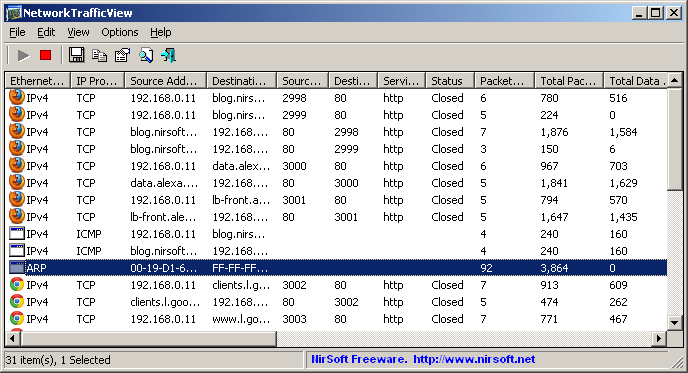
NetworkTrafficView is a network monitoring tool that captures the packets pass through your network adapter,
and displays general statistics about your network traffic. The packets statistics is grouped by the
Ethernet Type, IP Protocol, Source/Destination Addresses, and Source/Destination ports.
For every statistics line, the following information is displayed:
Ethernet Type (IPv4, IPv6, ARP), IP Protocol (TCP, UDP, ICMP), Source Address, Destination Address, Source Port,
Destination Port, Service Name (http, ftp, and so on), Packets Count, Total Packets Size, Total Data Size,
Data Speed, Maximum Data Speed, Average Packet Size, First/Last Packet Time, Duration, and process ID/Name (For TCP connections).
Versions History
- Version 2.52:
- Added 'Keep Selected Item Visible' option. When it's turned on, the selected item always remains visible.
- Version 2.51:
- Added 'Clear All Current Items' toolbar button
- Version 2.50:
- Added support for using the IP-Location files from https://github.com/sapics/ip-location-db for viewing country/city information of Source/Destination IP addresses.
- In order to use these IP-Location files, simply download the desired file and put it in the same folder of NetworkTrafficView.exe with its original filename (For example: asn-country-ipv4.csv , dbip-city-ipv4.csv)
- Version 2.44:
- Added 'Black Background' option (Under the View menu). When it's turned on, the main table is displayed in black background and white text, instead of default system colors.
- Added 'Sort By' button to the toolbar.
- Version 2.43:
- Fixed bug: NetworkTrafficView randomly crashed when using the GeoLite2 City database.
- Version 2.42:
- Fixed the default columns size in high DPI mode.
- Version 2.41:
- Added option to change the sorting column from the menu (View -> Sort By). Like the column header click sorting, if you click again the same sorting menu item, it'll switch between ascending and descending order. Also, if you hold down the shift key while choosing the sort menu item, you'll get a secondary sorting.
- Version 2.40:
- Added 'SACK Permitted' column ('Yes' or 'No' values), which shows whether the source address allows to use TCP SACK (TCP Selective Acknowledgments).
- Added 'TCP SACK' column, which shows the number of TCP SACK packets sent by the source address.
- These options are available only for TCP items and only when the selected options are 'Display the 2 packet directions in 2 separated lines' and 'Group by combination of Ethernet Type, IP Protocol, Addresses, and TCP/UDP Ports'.
- Updated to work properly in high DPI mode.
- Version 2.35:
- Added support for GeoLite2 City and GeoLite2 Country database in CSV format.
- In order to use it, extract all files into the folder of NetworkTrafficView.exe
- Be aware that the loading process of the GeoLite2 City database is quite slow.
- Version 2.30:
- Added new columns: 'TCP Window Size', 'TCP Window Scale', 'Maximum Segment Size'. Available only for TCP items and only when the selected options are 'Display the 2 packet directions in 2 separated lines' and 'Group by combination of Ethernet Type, IP Protocol, Addresses, and TCP/UDP Ports'.
- Added 'TTL' (Time To Live) column.
- Version 2.25:
- Added improved process detection and now it also works for UDP traffic. This feature works only when you run NetworkTrafficView as Administrator and the 'Trace TCP/UDP Processes' option is turned on.
- Version 2.20:
- Added option to filter by TCP/UDP port numbers (In 'Advanced Options' window).
- Added 'Always On Top' option.
- Added 'Add Header Line To CSV/Tab-Delimited File' option (Turned on by default).
- Version 2.16:
- Fixed bug from version 2.15: NetworkTrafficView crashed when selecting network interface without connection information.
- Version 2.15:
- The information of the selected network adapter is now displayed in the window title.
- Version 2.13:
- Added 'Select All' and 'Deselect All' to the 'Column Settings' window.
- Version 2.12:
- Fixed the 'Service Name' column to detect service names from the official services list of Microsoft (C:\windows\system32\drivers\etc\services).
- Version 2.11:
- Automatic export feature: You can now choose to generate a new filename on every session (When you close the program and then run it again) or on every save.
You can also generate a filename with date/time (e.g: ntv20170925102400.csv) instead of numeric counter.
- Version 2.10:
- Added option to automatically export the network traffic information to a file (csv/tab-delimited/html/xml) every xx seconds (In 'Advanced Options' window).
- Version 2.06:
- Added 'IPNetInfo - Source IP' option.
- Version 2.05:
- Added 'Save All Items' (Shift+Ctrl+S).
- Version 2.04:
- NetworkTrafficView now automatically loads the new version of WinPCap driver from https://nmap.org/npcap/ if it's installed on your system.
- Version 2.03:
- Added 'Align Numeric Columns To Right' option.
- Version 2.02:
- Added option to choose another font (name and size) to display in the main window.
- Version 2.01:
- NetworkTrafficView now tries to load the dll of Network Monitor Driver 3.x (NmApi.dll) according to the installation path specified in HKEY_LOCAL_MACHINE\SOFTWARE\Microsoft\Netmon3.
This change should solve the problem with loading the Network Monitor Driver 3.x on some systems.
- Version 2.00:
- Added 4 columns to the adapters list in the 'Capture Options' window: 'Connection Name', 'MAC Address', 'Instance ID', 'Interface Guid'.
- When using WinPCap driver , NetworkTrafficView now displays more accurate information in the adapters list of the 'Capture Options' window.
- Version 1.96:
- NetworkTrafficView now displays the process names (Some of them without the full path) for most processes when you run it without elevation ('Run As Administrator').
- Version 1.95:
- Added 'Auto Size Columns On Every Update' option.
- Added /StopCommandLineCapture command-line option, which allows you to stop a command-line capture that is currently running and save all captured information to a file.
- You can now specify '0' in the /CaptureTime command-line in order to capture the network traffic without time limit. The capture will stop when you run NetworkTrafficView with
/StopCommandLineCapture command.
- Added /SaveToFileInterval command-line option, which allows you to save the capture result every xx seconds, instead of saving to file only when the capture ends.
- Version 1.90:
- Added option to group by source address or destination address.
- Version 1.87:
- Fixed bug: NetworkTrafficView failed to remember the last size/position of the main window if it was not located in the primary monitor.
- Version 1.86:
- Added secondary sorting support: You can now get a secondary sorting, by holding down the shift key while clicking the column header. Be aware that you only have to hold down the shift key when clicking the second/third/fourth column. To sort the first column you should not hold down the Shift key.
- Version 1.85:
- NetworkTrafficView now allows you to automatically add it to the allowed programs list of Windows firewall when starting to capture and remove it when you stop capturing. This option is needed when using the 'Raw Socket' capture method while Windows firewall is turned on, because if NetworkTrafficView is not added to Windows firewall, the incoming traffic is not captured at all.
- NetworkTrafficView now offers you to run it as administrator (Under Windows Vista/7/8 with UAC) if you start to capture using Raw Sockets method.
- Version 1.82:
- Added columns names ('IP Address' and 'Adapter Name') to the adapters list on the 'Capture Options' window.
- Version 1.81:
- Version 1.80:
- Added 'Host Names and IP Addresses' to the 'Addresses Display Mode'.
- Version 1.78:
- Fixed bug: The 'Promiscuous Mode' check-box in the 'Capture Options' window was not saved to the configuration file.
- Version 1.77:
- Added /cfg command-line option, which instructs NetworkTrafficView to use a config file in another location instead if the default config file, for example:
NetworkTrafficView.exe /cfg "%AppData%\NetworkTrafficView.cfg"
- Added 'Show Time In GMT' option.
- Version 1.76:
- Added 'Maximum Packet Size' column. For TCP connections that transfers significant amount of data,
the value under this column represents the actual MTU.
- Version 1.75:
- Added option to group by service name - http, https, ftp, and so on. (In 'Advanced Options' window).
- Version 1.70:
- Added option to group by IP country (In 'Advanced Options' window). This feature requires to download
IP address to country file (the file of software77.net or the GeoLite City database).
- Version 1.65:
- The 'First Packet Time', 'Last Packet Time', and 'Duration' columns now display more accurate result when using the WinPcap driver or
the Microsoft Network Monitor driver, version 3.4 or greater. That's because NetworkTrafficView takes the capture timestamps provided by these drivers instead of taking the current date/time from the system
at the moment that NetworkTrafficView analyzes the packet.
- Added 'Latency' column, which calculates and displays the network latency in milliseconds. It calculates the time difference from the moment that the client sends the first packet and the moment that the response received
from the server. The result is usually very similar to what you get if you ping to the same address.
Be aware that this column is only active when the Packet Direction Grouping (In 'Advanced Options' window) is 'Display both packet directions in a single line'.
Also, to get accurate results, you should use the WinPcap driver or the Microsoft Network Monitor driver (version 3.4 or later) to capture the packets.
- Version 1.62:
- Fixed the flickering problem on Windows 7.
- Version 1.61:
- When capturing traffic from command-line ( with /CaptureTime ), NetworkTrafficView now also
updates the following columns: Data Speed, Maximum Data Speed, Process ID, and Process Filename.
- Version 1.60:
- Added 'Load From Capture File' option. This option allows you to load a capture file created by WinPcap/Wireshark (Requires the WinPcap driver) or a capture file created by Microsoft Network Monitor driver (Requires the Network Monitor driver 3.x) and then
display the network traffic statistics, exactly like the traffic statistics you get with a live capture.
- Added /load_file_pcap and /load_file_netmon command-line options.
- Version 1.57:
- Fixed bug: NetworkTrafficView displayed the process filename incorrectly.
- Version 1.56:
- Added 'Auto Size Columns+Headers' option, which allows you to automatically resize the columns according to the row values and column headers.
- Added 'Mark Odd/Even Rows' option, under the View menu. When it's turned on, the odd and even rows are displayed in different color, to make it easier to read a single line.
- Fixed issue: The properties dialog-box and other windows opened in the wrong monitor, on multi-monitors system.
- Version 1.55:
- Added support for GeoLite City database.
You can now download the GeoLite City database (GeoLiteCity.dat.gz), put it in the same folder of NetworkTrafficView.exe, and
NetworkTrafficView will automatically use it to get the country/city information for every IP address.
- Version 1.50:
- Added option to save/load the configuration of NetworkTrafficView.
- Added command-line support: You can now run NetworkTrafficView to capture traffic for the specified number of seconds,
and then save the result into tab-delimited/csv/xml/html file, without displaying any user interface.
For example:
NetworkTrafficView.exe /shtml c:\temp\traffic.html /CaptureTime 20 /Sort "~Total Data Size"
- Version 1.42:
- Fixed bug: When opening the 'Capture Options' dialog-box after Network Monitor Driver 3.x was previously selected, NetworkTrafficView
switched back to Raw Sockets mode.
- Version 1.41:
- Fixed NetworkTrafficView to sort Ipv4 addresses correctly.
- Version 1.40:
- Added option to filter by the duration of every packets statistics line (In 'Display Filter Options' window).
- Version 1.35:
- Added option to choose the displayed speed unit: kB/Sec, KiB/Sec, MB/Sec, MiB/Sec, or Mbps.
- Version 1.31:
- The speed filter now allows you to specify non-interger values (e.g: 0.5 KB/Sec)
- Fixed the problem with Windows 2000 appeared on version v1.30
- Version 1.30:
- Added new option: 'Display only items with speed above...' (In Display Filter Options window)
- Added new option: Display only items with minimum number of packets (In Display Filter Options window)
- Version 1.25:
- Added 'Source Country' and 'Destination Country' columns, which displays the country of the specified IPv4 addresses.
In order to activate this feature, you have to download the IP to countries file from this Web page, and then
put the downloaded IpToCountry.csv file in the same folder of the .exe file.
- Fixed the accelerator key of 'Stop Capture' (F6)
- Version 1.20:
- Added 'Start As Hidden' option. When this option and 'Put Icon On Tray' option are turned on, the main window of NetworkTrafficView will be invisible on start.
- Version 1.15:
- Added 5 new columns which counts the flags of all TCP packets:
TCP Ack, TCP Push, TCP Reset, TCP Syn, and TCP Fin.
- Version 1.10:
- Added 'Put Icon On Tray' option.
- Version 1.05:
- Added new general grouping mode: Group by process.
- Version 1.00 - First release.
System Requirements
- This utility works on any version of Windows, starting from Windows 2000 and up to Windows 10, including 64-bit systems.
- One of the following capture drivers is required to use NetworkTrafficView:
- Npcap capture driver
Npcap is an open source capture driver based on the discontinued WinPcap library that allows you to capture network packets on any version of Windows.
You can download and install the Npcap driver from this Web page.
- Microsoft Network Monitor Driver version 2.x (Only for Windows 2000/XP/2003):
Microsoft provides a free capture driver under Windows 2000/XP/2003 that can be used by NetworkTrafficView,
but this driver is not installed by default, and you have to manually install it, by using one of the following options:
- Microsoft Network Monitor Driver version 3.x:
Microsoft provides a new version of Microsoft Network Monitor driver (3.x) that is also supported under Windows 7/Vista/2008.
The new version of Microsoft Network Monitor (3.x) is available to download from Microsoft Web site.
- You can also try to use NetworkTrafficView without installing any driver, by using the 'Raw Sockets'
method. Unfortunately, Raw Sockets method has many problems:
- It doesn't work in all Windows systems, depending on Windows version, service pack, and the updates installed on your system.
On some systems, Raw Sockets works only partially and captures only the incoming packets. On some other systems, it doesn't work at all.
- On systems that 'Raw Sockets' method works properly, it can only capture IPv4 TCP/UDP packets. It cannot capture
other type of packets, like the other capture drivers.
- On Windows 7 with UAC turned on, 'Raw Sockets' method only works when you run NetworkTrafficView with 'Run As Administrator'.
Start Using NetworkTrafficView
Except of a capture driver needed for capturing network packets,
NetworkTrafficView doesn't require any installation process or additional dll files.
In order to start using it, simply run the executable file - NetworkTrafficView.exe
After running NetworkTrafficView in the first time, the 'Capture Options' window appears on the screen,
and you're requested to choose the capture method and the desired network adapter.
In the next time that you use NetworkTrafficView, it'll automatically start capturing packets with the capture method and
the network adapter that you previously selected. You can always change the 'Capture Options' again by pressing F9.
After choosing the capture method and network adapter, NetworkTrafficView starts to display your current network traffic,
grouped by the Ethernet Type, IP Protocol, Source/Destination Addresses, and Source/Destination ports.
You can press F6 to stop the network traffic capture, F5 to start it again, or Ctrl+X to clear the current
network traffic statistics.
Change the Grouping Mode
In the 'Advanced Options' window (F8), you can change the grouping settings, which affects the way that
the network traffic statistics is accumulated and displayed on the screen:
- Packet Direction Grouping:
- Display both packet directions in a single line:
When you choose this option, packets sent in both directions (client to server and server to client) are
accumulated in the same statistics line.
- Display the 2 packet directions in 2 separated lines:
When you choose this option, packets sent from client to server and packets sent from server to client are
accumulated and displayed in 2 different statistics lines.
- General Grouping:
- Group by combination of Ethernet Type, IP Protocol, Addresses, and TCP/UDP Ports:
When this option is selected, every TCP connection is accumulated and displayed separately.
For example, if your Web browser opens 5 connections to the same server,
5 or 10 statistics lines (depending on the Packet Direction Grouping) will be displayed on the screen.
- Group by combination of Ethernet Type, IP Protocol, and Addresses. Ignore TCP/UDP Ports:
When this option is selected, all TCP connections with the same client and server are accumulated and displayed in the same
statistics line.
For example, if your Web browser opens 5 connections to the same server,
1 or 2 statistics lines (depending on the Packet Direction Grouping) will be displayed on the screen.
- Group by process:
When this option is selected, all TCP connections came from the same process are accumulated and displayed in the same
statistics line.
IP Address Country/City Information
NetworkTrafficView allows you to view country/city information for every source/destination IP address ('Source Country' and 'Destination Country' columns).
In order to use this feature, simply download the desired city or country file from https://github.com/sapics/ip-location-db,
and then put it in the same folder of NetworkTrafficView.exe with its original filename (For example: asn-country-ipv4.csv , dbip-city-ipv4.csv)
Integration with IPNetInfo utility
If you want to get more information about the destination IP address displayed in NetworkTrafficView utility,
you can use the Integration with IPNetInfo utility in order to easily view the IP address information loaded directly from WHOIS servers:
- Download and run the latest version of IPNetInfo utility.
- Select the desired connections, and then choose "IPNetInfo - Destination IP" from the File menu (or simply click Ctrl+I).
- IPNetInfo will retrieve the information about destination IP addresses of the selected items.
Columns Description
- Ethernet Type:
Displays the Ethernet type - IPv4, IPv6, ARP, and so on.
- IP Protocol:
Displays the IP protocol, when the Ethernet type is IPv4 or IPv6 -
TCP, UDP, ICMP, and so on.
- Source/Destination Address:
Displays the source and destination addresses of this packets summary line.
For non-IP packets (like ARP), the MAC addresses are displayed.
For IP packets (IPv4 or IPv6), the IP addresses or host names are displayed.
- Source/Destination Port:
For TCP lines, the port numbers of the TCP connection are displayed.
- Service Name:
For TCP lines, displays the service name (http, https, ftp, and so on) according to the lower port number.
- Status:
For TCP lines, displays whether the TCP connection is opened or closed.
Be aware that by default, the 'Hide Closed TCP Connection' option is turned on, which means that closed
connections are automatically hidden, unless you turn off the 'Hide Closed TCP Connection' option.
- Packets Count:
The number of packets counted for the specified packets group.
- Total Packets Size:
The total size of all packets (in bytes), including the packet headers, for the specified packets group.
- Total Data Size:
The total size of the data of all packets (in bytes), excluding the Ethernet and TCP/IP headers, for the specified packets group.
- Data Speed:
The current data speed for the specified packets group, in KB/Sec.
- Maximum Data Speed:
The maximum data speed recorded by NetworkTrafficView for the specified packets group.
- Average Packet Size:
The average packet size (in bytes) of the specified packets group.
- First Packet Time:
The date/time that the first packet of the specified packets group was captured.
- Last Packet Time:
The date/time that the last packet of the specified packets group was captured.
- Duration:
The difference between the first packet time and the last packet time.
- Process ID:
The process ID of the specified TCP connection.
- Process Name:
The process .exe name of the specified TCP connection.
Command-Line Options
|
/cfg <Filename>
|
Start NetworkTrafficView with the specified configuration file.
For example:
NetworkTrafficView.exe /cfg "c:\config\ntv.cfg"
NetworkTrafficView.exe /cfg "%AppData%\NetworkTrafficView.cfg"
| |
/load_file_pcap <Filename>
|
Loads the specified capture file, created by WinPcap driver.
| |
/load_file_netmon <Filename>
|
Loads the specified capture file, created by Network Monitor driver 3.x.
| |
/CaptureTime <Time In Seconds>
|
Specifies the number of seconds to capture the traffic, when using one of the save
command-line options (/stext, /stab, and so on...)
If you don't specify this command-line option, the default capture time is 10 seconds.
If you specify '0', the capture will continue until running NetworkTrafficView with /StopCommandLineCapture command-line option.
| |
/LoadConfig <Config File>
|
Loads the specified configuration file.
| |
/SaveToFileInterval <Time In Seconds>
|
Saves the capture result every xx seconds.
| |
/StopCommandLineCapture
|
Stops a command-line capture that is currently running and saves all captured information to a file
| |
/stext <Filename>
| Save the network traffic information into a simple text file.
| |
/stab <Filename>
| Save the network traffic information into a tab-delimited text file.
| |
/scomma <Filename>
| Save the network traffic information into a comma-delimited text file (csv).
| |
/stabular <Filename>
| Save the network traffic information into a tabular text file.
| |
/shtml <Filename>
| Save the network traffic information into HTML file (Horizontal).
| |
/sverhtml <Filename>
| Save the network traffic information into HTML file (Vertical).
| |
/sxml <Filename>
| Save the network traffic information into XML file.
| |
/sort <column>
|
This command-line option can be used with other save options for sorting by the desired column.
If you don't specify this option, the list is sorted according to the last sort that you made from the user interface.
The <column> parameter can specify the column index (0 for the first column, 1 for the second column, and so on) or
the name of the column, like "Source Address" and "Packets Count".
You can specify the '~' prefix character (e.g: "~Total Data Size") if you want to sort in descending order.
You can put multiple /sort in the command-line if you want to sort by multiple columns.
Examples:
NetworkTrafficView.exe /shtml "c:\temp\networktraffic.html" /sort 2 /sort ~1
NetworkTrafficView.exe /shtml "c:\temp\networktraffic.html" /sort "IP Protocol" /sort "Data Speed"
| |
/nosort
|
When you specify this command-line option, the list will be saved without any sorting.
|
Command-line Examples:
NetworkTrafficView.exe /shtml c:\temp\traffic.html /CaptureTime 15 /Sort "~Total Data Size"
NetworkTrafficView.exe /LoadConfig c:\temp\config1.cfg /scomma c:\temp\traffic.csv /Sort "~Data Speed"
NetworkTrafficView.exe /shtml c:\temp\traffic.html /CaptureTime 0 /SaveToFileInterval 15
Translating NetworkTrafficView to other languages
In order to translate NetworkTrafficView to other language, follow the instructions below:
- Run NetworkTrafficView with /savelangfile parameter:
NetworkTrafficView.exe /savelangfile
A file named NetworkTrafficView_lng.ini will be created in the folder of NetworkTrafficView utility.
- Open the created language file in Notepad or in any other text editor.
- Translate all string entries to the desired language.
Optionally, you can also add your name and/or a link to your Web site.
(TranslatorName and TranslatorURL values) If you add this information, it'll be
used in the 'About' window.
- After you finish the translation, Run NetworkTrafficView, and all translated
strings will be loaded from the language file.
If you want to run NetworkTrafficView without the translation, simply rename the language file, or move
it to another folder.
License
This utility is released as freeware.
You are allowed to freely distribute this utility via floppy disk, CD-ROM,
Internet, or in any other way, as long as you don't charge anything for this and you don't
sell it or distribute it as a part of commercial product.
If you distribute this utility, you must include all files in
the distribution package, without any modification !
Disclaimer
The software is provided "AS IS" without any warranty, either expressed or implied,
including, but not limited to, the implied warranties of merchantability and fitness
for a particular purpose. The author will not be liable for any special, incidental,
consequential or indirect damages due to loss of data or any other reason.
Feedback
If you have any problem, suggestion, comment, or you found a bug in my utility,
you can send a message to nirsofer@yahoo.com
NetworkTrafficView is also available in other languages. In order to change the language of
NetworkTrafficView, download the appropriate language zip file, extract the 'networktrafficview_lng.ini',
and put it in the same folder that you Installed NetworkTrafficView utility.
|
|