| |

|
IE PassView v1.42 - Recover lost passwords stored by Internet Explorer
Copyright (c) 2006 - 2019 Nir Sofer
|
See Also
Description
IE PassView is a small utility that reveals the passwords stored by Internet Explorer Web browser.
It supports all versions of Internet Explorer, from version 4.0 and up to 11.0, as well as Microsoft Edge Browser.
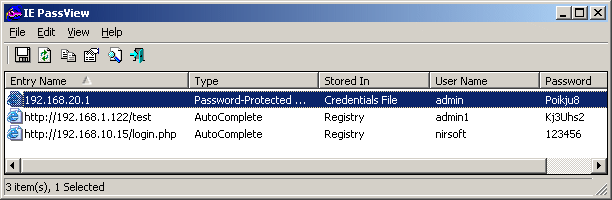
For each password that is stored by Internet Explorer, the following information is displayed:
Web address, Password Type (AutoComplete, Password-Protected Web Site, or FTP), Storage Location
(Registry, Credentials File, or Protected Storage), and the user name/password pair.
You can select one or more items from the passwords list and export them into text/html/csv/xml file.
IE PassView also allows you to extract the passwords of Internet Explorer and Microsoft Edge from external hard drive.
Versions History
- Version 1.42
- Added option to choose another font (name and size) to display in the main window.
- The download zip file is now password-protected. (Password is below the download link).
- Version 1.41
- Added NoHistoryRead entry to the .cfg file. If you set it to 1, IE PassView won't read the history database for decrypting the passwords.
This option is useful for the combination of IE11 and Windows 7 because IE PassView may hang or crash if the history database is not flushed to disk completely.
- You can use /NoHistoryRead from command-line to turn off the history reading of IE11:
iepv.exe /NoHistoryRead
- Version 1.40
- Added support for decrypting IE passwords from external drive for recent versions of Windows and IE, including Windows 10, IE10, IE11, and Microsoft Edge.
- For IE7 - IE9 and IE10/IE11 under Windows 7 - IE PassView now reads the Registry file (ntuser.dat) directly instead of loading it as additional Registry hive.
- Version 1.35
- Finally... Fixed a crash problem occurred on some Windows 10 systems (The problem occurred if you added Gmail or other email account into Windows 10 Mail application).
- Version 1.32
- Removed the command-line options that export the passwords to a file from the official version.
A version of this tool with full command-line support will be posted on separated Web page.
- Version 1.31
- Improved the password decryption on IE10 / Windows 7.
- Version 1.30
- Added support for extracting the passwords of Internet Explorer 10.
- Version 1.26
- Fixed bug: IE PassView didn't display https AutoComplete passwords of IE6.
- Version 1.25
- Added an option to export the passwords into KeePass csv file (In 'Save Selected Items').
You can use the created csv file to easily import your Web site passwords into KeePass password manager.
- Added 'Add Header Line To CSV/Tab-Delimited File' option. When this option is turned on, the column names are added as the first line when you export to csv or tab-delimited file.
- You can now send the IE passwords list to stdout by specifying an empty filename ("") in the command-line of all save parameters.
For example: iepv.exe /stab "" >> c:\temp\passwords.txt
- Version 1.20
- Added 'Password Strength' column, which calculates the strength of the password and displays it as
Very Weak, Weak, Medium, Strong, or Very Strong.
- Version 1.17
- Added command-line sorting options.
- Version 1.16
- Added accelerator key and toolbar button for 'Advanced options' dialog-box.
- Version 1.15
- Added support for reading IE7 passwords from external drive.
- Version 1.10
- Fixed bug: After passwords were added/deleted , refreshing the list in IE PassView didn't work properly.
- Version 1.09
- Fixed bug: The main window lost the focus when the user switched to another application and then returned back to IE PassView.
- Version 1.08
- Added support for saving as comma delimited file.
- Added /scomma commmand-line option
- Version 1.07
- Fixed bug: IE PassView failed to detect the AutoComplete passwords of URLs the end with '/' character (On Internet Explorer 7).
- Added support for Web sites file (iepv_sites.txt) - for decrypting the passwords of Internet Explorer 7.0 even when the history file is empty.
- Version 1.06
- The configuration is now saved to a file instead of the Registry.
- Version 1.05
- Fixed a small bug that caused IE PassView to hang in some computers.
- Version 1.04
- Added support for IE7 under Windows Vista.
- Version 1.03
- Added new option: Delete selected items.
- Version 1.02
- Fixed bug: The save command-line options created empty file.
- Fixed bug: The password of password-protected Web sites appeared also in the user name column.
- Version 1.01
- Added new options: Show/hide passwords according to their storing location.
- New command-line options /no_pass_cred, /no_pass_pstore, /no_pass_reg
- Version 1.00 - First Release.
Download links are on the bottom of this page
Using IE PassView
IE PassView doesn't require any installation process or additional DLLs.
In order to start using it, just copy the executable file (iepv.exe) to any folder like, and run it.
After running iepv.exe, IE PassView scans all Internet Explorer passwords in your system, and display them
on the main window.
Types Of Passwords
IE PassView utility can recover 3 types of passwords:
- AutoComplete Passwords:
When you enter a Web page that contains a form with user/password fields and a login button,
Internet Explorer may ask you if you want to save the password, after pressing the login button.
If you choose to save the password, the password is saved as AutoComplete password.
Be aware that some Web sites (like Yahoo login page) deliberately disable the AutoComplete feature,
in order to avoid password stealing by other users.
- HTTP Authentication Passwords:
Some Web sites allow the user to enter only after typing user and password in a separated dialog-box.
If you choose to save the password in this login dialog-box, the password is saved as HTTP authentication password.
- FTP Passwords:
Simply the passwords of FTP addresses (ftp://...)
Password Storage Locations
Internet Explorer stores the passwords in different locations,
depending on the version of IE, and the type of the password:
- Protected Storage:
The 'Protected Storage' is a special secret location in the Registry that was used to store all
the passwords of Internet Explorer in versions 4.0 - 6.0
The Registry location of the Protected Storage was HKEY_CURRENT_USER\Software\Microsoft\Protected Storage System Provider.
Starting from version 7.0 of Internet Explorer, the Protected Storage is no longer used for storing passwords.
- Registry (Storage2 Key):
Starting from version 7.0 of IE, all AutoComplete passwords are stored in
HKEY_CURRENT_USER\Software\Microsoft\Internet Explorer\IntelliForms\Storage2 Registry key.
The passwords are encrypted with a key created from the Web site address, so it's not possible to
get the password without knowing the Web site address.
- Credentials File:
Starting from version 7.0 of IE, HTTP authentication passwords are saved in the Credentials file of Windows,
together with other network/login passwords.
The Credentials file is located in the following locations:
- Windows XP/2003: [Windows Profile]\Application Data\Microsoft\Credentials\[User SID]\Credentials and [Windows Profile]\Local Settings\Application Data\Microsoft\Credentials\[User SID]\Credentials
- Windows Vista: [Windows Profile]\AppData\Roaming\Microsoft\Credentials\[Random ID] and [Windows Profile]\AppData\Local\Microsoft\Credentials\[Random ID]
Known Issues With Internet Explorer 7.0/8.0/9.0
Starting from version 7.0 of Internet Explorer, Microsoft completely changed the way that passwords are saved.
In previous versions (4.0 - 6.0), all passwords were saved in a special location in the Registry known as the "Protected Storage".
In version 7.0 of Internet Explorer, passwords are saved in different locations, depending on the type of password.
Each type of passwords has some limitations in password recovery:
- AutoComplete Passwords:
These passwords are saved in the following location in the Registry:
HKEY_CURRENT_USER\Software\Microsoft\Internet Explorer\IntelliForms\Storage2
The passwords are encrypted with the URL of the Web sites that asked for the passwords, and thus they
can only be recovered if the URLs are stored in the history file.
If you clear the history file, IE PassView won't be able to recover the passwords until you visit again the
Web sites that asked for the passwords.
Alternatively, you can add a list of URLs of Web sites that requires user name/password into the Web sites file (see below).
- HTTP Authentication Passwords:
These passwords are stored in the Credentials file under Documents and Settings\Application Data\Microsoft\Credentials
, together with login passwords of LAN computers and other passwords.
Due to security limitations, IE PassView can recover these passwords only if you have administrator rights.
Known Issue With Delete Items
Be aware that when you have a Web site that has multiple stored passwords, deleting the one of the passwords also
remove all the other passwords for the same Web site.
The reason for that is that all the passwords of a Web site are stored in the same entry.
Using The Web Sites File (iepv_sites.txt)
As explained earlier, IE PassView won't be able to retrieve the AutoComplete passwords of Internet Explorer 7.0 if the history of Internet Explorer is cleared.
If you know the exact URLs of Web sites that store user name and passowrd, you can add them into the Web Sites File - iepv_sites.txt,
and then IE PassView will retrieve the passwords even if the URL cannot be found in the history file of Internet Explorer.
iepv_sites.txt is a simple text file that must be located in the same folder of iepv.exe.
The URLs in the file should be separated by CRLF characters.
A sample iepv_sites.txt file with a few URLs is already provided with IE PassView.
Reading IE7 - IE11 passwords from external drive
Starting from version 1.15, you can also read the passwords stored by IE7 - IE11 from an external profile in your current operating system or from another external drive (For example:
from a dead system that cannot boot anymore).
In order to use this feature, you must know the last logged-on password used for this profile, because the
passwords are encrypted with the SHA hash of the log-on password, and without that hash, the passwords cannot be decrypted.
You can use this feature from the UI, by selecting the 'Advanced Options' in the Options menu, or from command-line,
by using /external parameter. The user profile path should be something like "C:\Documents and Settings\admin"
in Windows XP/2003 or "C:\users\myuser" in Windows Vista/2008.
Security Alerts By Antivirus Programs (False Positives)
Some Antivirus programs detect this utility as infected with Trojan/Virus.
Click here to read more about false alerts in Antivirus programs.
Command-Line Options
|
/stext <Filename>
| Save the list of all Internet Explorer passwords into a regular text file.
| |
/stab <Filename>
| Save the list of all Internet Explorer passwords into a tab-delimited text file.
| |
/scomma <Filename>
| Save the list of all Internet Explorer passwords into a comma-delimited text file.
| |
/stabular <Filename>
| Save the list of all Internet Explorer passwords into a tabular text file.
| |
/shtml <Filename>
| Save the list of all Internet Explorer passwords into HTML file (Horizontal).
| |
/sverhtml <Filename>
| Save the list of all Internet Explorer passwords into HTML file (Vertical).
| |
/sxml <Filename>
| Save the list of all Internet Explorer passwords to XML file.
| |
/skeepass <Filename>
| Save the list of all Internet Explorer passwords to KeePass csv file.
| |
/sort <column>
|
This command-line option can be used with other save options for sorting by the desired column.
If you don't specify this option, the list is sorted according to the last sort that you made from the user interface.
The <column> parameter can specify the column index (0 for the first column, 1 for the second column, and so on) or
the name of the column, like "Entry Name" and "Type".
You can specify the '~' prefix character (e.g: "~Type") if you want to sort in descending order.
You can put multiple /sort in the command-line if you want to sort by multiple columns.
Examples:
iepv.exe /shtml "f:\temp\iepv.html" /sort 2 /sort ~1
iepv.exe /shtml "f:\temp\iepv.html" /sort "Type" /sort "Stored In"
| |
/nosort
|
When you specify this command-line option, the list will be saved without any sorting.
| |
/no_pass_cred
|
Don't load the passwords stored in the Credentials file.
| |
/no_pass_reg
|
Don't load the passwords stored in the Registry.
| |
/no_pass_pstore
|
Don't load the passwords stored in the Protected Storage.
| |
/external <User Profile Path> <Last Log-On Password>
|
Load the IE7 passwords from external drive/profile.
For example:
iepv.exe /external "C:\Documents and Settings\admin" "MyPassword"
|
Translating IE PassView To Another Language
IE PassView allows you to easily translate all menus, dialog-boxes, and other strings
to other languages.
In order to do that, follow the instructions below:
- Run IE PassView with /savelangfile parameter:
iepv.exe /savelangfile
A file named iepv_lng.ini will be created in the folder of IE PassView utility.
- Open the created language file in Notepad or in any other text editor.
- Translate all menus, dialog-boxes, and string entries to the desired language.
- After you finish the translation, Run IE PassView, and all translated
strings will be loaded from the language file.
If you want to run IE PassView without the translation, simply rename the language file, or move
it to another folder.
License
This utility is released as freeware.
You are allowed to freely distribute this utility via floppy disk, CD-ROM,
Internet, or in any other way, as long as you don't charge anything for this.
If you distribute this utility, you must include all files in
the distribution package, without any modification !
Be aware that selling this utility as a part of a software package is not allowed !
Disclaimer
The software is provided "AS IS" without any warranty, either expressed or implied,
including, but not limited to, the implied warranties of merchantability and fitness
for a particular purpose. The author will not be liable for any special, incidental,
consequential or indirect damages due to loss of data or any other reason.
Feedback
If you have any problem, suggestion, comment, or you found a bug in my utility,
you can send a message to nirsofer@yahoo.com
IE PassView is also available in other languages. In order to change the language of
IE PassView, download the appropriate language zip file, extract the 'iepv_lng.ini',
and put it in the same folder that you Installed IE PassView utility.
|
|