| |

|
OpenedFilesView v1.91 - View opened/locked files in your system (sharing violation issues)
Copyright (c) 2006 - 2023 Nir Sofer
|
See Also
- ProcessActivityView - Show file activity summary in the selected process
- NK2Edit - Edit, merge and fix the AutoComplete files (.NK2) of Microsoft Outlook.
Description
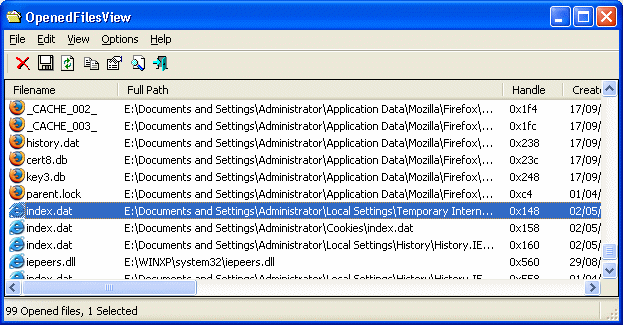
OpenedFilesView displays the list of all opened files on your system.
For each opened file, additional information is displayed: handle value, read/write/delete access, file position, the process that opened the file, and more...
Optionally, you can also close one or more opened files, or close the process that opened these files.
This utility is especially useful if you try to delete/move/open a file and you get one of the following error messages:
- Cannot delete [filename]: There has been a sharing violation. The source or destination file may be in use.
- Cannot delete [filename]: It is being used by another person or program. Close any programs that might be using the file and try again.
When you get one of these error messages, OpenedFilesView will show you which process lock your file.
Closing the right process will solve this problem.
optionally, you can also release the file by closing the handle from OpenedFilesView utility.
However, be aware that after closing a file in this way, the program that opened the file may become unstable, and even crash.
System Requirements
This utility works properly on Windows 2000, Windows XP, Windows 2003/2008, Windows Vista, Windows 7, Windows 8, Windows 10, Windows 11.
On 64-bit systems, you have to use the 64-bit version of OpenedFilesView. This tool doesn't work on systems with the new driver signing policy (Windows 10/11 with 'Secure Boot' turned on).
If OpenedFilesView fails to work on your Windows 7/2008 64-bit system , you need to install the SHA-2 Code Signing Support update from Microsoft:
https://support.microsoft.com/en-us/topic/2019-sha-2-code-signing-support-requirement-for-windows-and-wsus-64d1c82d-31ee-c273-3930-69a4cde8e64f
Also, you must have administrative privilege in order to run this utility.
Known Issue
If you try to run the 64-bit verion of this tool directly from a zip file, you may get the following error message:
The application was unable to start correctly (0xc000007b). Click OK to close the application.
In order to solve this issue, you have to manually extract the content of the zip file into a folder, and then run it from there.
Versions History
- Version 1.91:
- Updated to work properly in high DPI mode.
- Added 'Black Background' option (Under the View menu). When it's turned on, the main table is displayed in black background and white text, instead of default system colors.
- Version 1.90:
- Fixed the /filefilter and /wildcardfilter command-line options to work properly with long filenames when the 'Convert To Long Path Names' option is turned on.
- Fixed security issue: The driver of OpenedFilesView allowed access for non-admin users.
- Be aware: Because the updated driver is signed with a newer code signing certificate, OpenedFilesView stopped working on Windows Vista 64-bit, and maybe on other systems too.
- If this version doesn't work on your system, you can download the version 1.87 of OpenedFilesView: 32-bit, 64-bit.
- Version 1.87:
- Added OpenedFilesView icon to the Explorer context menu.
- Fixed a bug that caused a small token handles leak.
- Version 1.86:
- Fixed OpenedFilesView to send the data to stdout when specifying an empty string (e.g: OpenedFilesView.exe /scomma "" ).
- Version 1.85:
- Added new option: 'Copy Locked Files To Another Folder' (F7), which allows you to copy locked files that cannot be copied with Windows Explorer. Be aware that this feature doesn't work if the file is opened by 'System Process'.
- Version 1.81:
- Added 'Align Numeric Columns To Right' option.
- Version 1.80:
- OpenedFilesView is now a Unicode application so it can display and save filenames with any character (Until now non-ANSI characters were displayed as '?').
- You can now choose the desired encoding (ANSI, UTF-8, UTF-16) to save the csv/xml/text/html files (Options -> Save File Encoding)
- Added 'Quick Filter' feature (View -> Use Quick Filter or Ctrl+Q). When it's turned on, you can type a string in the text-box added under the toolbar and OpenedFilesView will instantly filter the files list, showing only items that contain the string you typed.
- Version 1.70:
- Added 'Close Processes Of Selected Files'. As opposed to the 'Kill Processes Of Selected Files' option that brutally kills the process, this option
sends a request to the application to close itself as soon as possible (using WM_QUERYENDSESSION and WM_ENDSESSION Windows messages).
- Added closeprocess and killprocess commands to the /closefile and /closefolder command-line options, which allow you to close/kill the process
instead of closing the file handle, for example:
OpenedFilesView.exe /closefile closeprocess "c:\myfile.txt"
- Added 'Elevated Process' column.
- Added new information to 'Attributes' column: 'T' for 'Temporary File', 'I' for 'Not Content Indexed', 'E' for encrypted file, 'X' for 'No Scrub File', and 'V' for 'Integrity Attribute'.
- Version 1.65:
- Added 'Process User' column.
- Added 'Save All Items' option.
- Version 1.61:
- Explorer context menu inside OpenedFilesView: When you right-click on a single item while holding down the shift key, OpenedFilesView now displays the context menu of Windows Explorer, instead of the OpenedFilesView context menu.
- Version 1.60:
- Fixed bug: OpenedFilesView failed to remember the last size/position of the main window if it was not located in the primary monitor.
- Finally, fixed the error 100005 problem occurs in some systems.
- Version 1.58:
- Added a small fix that hopefully will solve the error 100005 problem occurs in some systems.
- Version 1.57:
- Added secondary sorting support: You can now get a secondary sorting, by holding down the shift key while clicking the column header. Be aware that you only have to hold down the shift key when clicking the second/third/fourth column. To sort the first column you should not hold down the Shift key.
- Fixed to display local date/time values according to daylight saving time settings.
- Version 1.56:
- Added /wildcardfilter command-line option, for example:
OpenedFilesView.exe /wildcardfilter *.dat
- Version 1.55:
- The 64-bit version of OpenedFilesView is now provided with a signed driver, so there is no need for driver signing test mode anymore..
(I randomly found out that the digital signature I purchased 1.5 years ago to sign the .exe files of NirSoft is now also suitable for signing drivers !)
- Version 1.52:
- Added 'Open File Folder' option (F8), which opens the folder of selected file
in Windows Explorer.
- Version 1.51:
- Added 'Mark Odd/Even Rows' option, under the View menu. When it's turned on, the odd and even rows are displayed in different color, to make it easier to read a single line.
- Version 1.50:
- Added 'Mark Files With Position Change' - When it's turned on, files with position change are marked in green color.
- Added '% Position' column - Displays the position of the file in % , relative to the current file size.
- Fixed bug: OpenedFilesView failed to close network files from command-line.
- Version 1.47:
- Added 'Add Header Line To CSV/Tab-Delimited File' option. When this option is turned on, the column names are added
as the first line when you export to csv or tab-delimited file.
- Version 1.46:
- /filefilter now allows you to specify a filename without a path.
For example, if you run OpenedFilesView with '/filefilter index.dat', all
opened index.dat filenames will be displayed.
- Version 1.45:
- Added command-line option for sorting the list in the save command-line options.
- When saving from command-line, OpenedFilesView now only save the items according to the options selected in the last time that you used it.
For example: if the 'Show Opened Directories' options is unchecked, opened directories won't be saved into the file.
- Version 1.41:
- Added 'Explorer Copy' option - You can selected one or more files, choose 'Explorer Copy', and then paste them into Explorer window.
- Version 1.40:
- Added 'Put Icon In Tray' option.
- Version 1.35:
- Added /processfilter command-line option.
- Added drag And drop icon in the toolbar that allows to to easily view only the opened files of the desired
application simply by dragging the target icon from the OpenedFilesView toolbar into the application.
- Version 1.30:
- New option: Bring process to front.
- Added more accelerator keys.
- Version 1.26:
- Fixed bug: Extension column displayed wrong value when folder name contained a dot character.
- Version 1.25:
- New option: Hide System Process Files.
- New option: Hide Svchost Files.
- Version 1.22:
- Added error message when OpenedFilesView fails to load the opened files list.
- You can now send the information to stdout by specifying an empty filename ("") in the command-line. (For example: openedfilesview.exe /stab "" >> c:\temp\of.txt)
- Version 1.21:
- Fixed bug: When using command-line options, the opened files of OpenedFilesView itself were added into the list.
- Version 1.20:
- New option: Mark Modified Filenames (Mark filenames that their date/time or file size was changed since the previous snapshot)
- Version 1.18:
- Fixed bug: The dates displayed in system locale, instead of user locale.
- Version 1.17:
- Added new option: Convert short-path names to long-path names.
- Version 1.16:
- Added file extension column, so you can sort the opened files list by file extension.
- Version 1.15:
- Added support for saving as comma-delimited text file.
- Fixed bug: AutoRefresh sub-menu selection wasn't displayed.
- Fixed bug: The main window lost the focus when the user switched to another application and then returned back to OpenedFilesView.
- Version 1.12:
On Vista, OpenedFilesView now automatically requires to run as administrator
(When User Account Control is turned on)
- Version 1.11:
Fixed bug: OpenedFilesView displayed wrong files when running it from context menu on a folder.
- Version 1.10:
- New option: 'Enable Explorer Context Menu' - Allows you to launch OpenedFilesView utility
directly from Explorer window, and display only the file handles of specific file or folder.
- New command-line option: /filefilter - Run OpenedFilesView with a file filter -
display only the file handles of the file or folder that you specify.
- The configuration of OpenedFilesView is now saved to a file instead of the Registry.
- Version 1.05 - Added another memory address check in NirSoftOpenedFilesDriver.sys
- Version 1.04 - A small fix in NirSoftOpenedFilesDriver.sys to avoid crashes when a memory address of kernel object is invalid.
- Version 1.03 - Improved file closing under Vista.
- Version 1.02 - A tooltip is displayed when a string in a column is longer than the column length.
- Version 1.01 - New option: Hide Files In Windows Folder.
- Version 1.00 - First release.
Known Issues
- OpenedFilesView cannot close files opened by Windows kernel.
How does it work ?
OpenedFilesView uses the NtQuerySystemInformation API to enumerate all handles in the system.
After filtering non-file handles, it uses a temporary device driver - NirSoftOpenedFilesDriver.sys for reading the information about each handle from the kernel memory.
This device driver is automatically unloaded from the system when you exit from OpenedFilesView utility.
Using OpenedFilesView
OpenedFilesView doesn't require any installation process or additional DLLs.
In order to start using it, just run the executable file - OpenedFilesView.exe
The main window of OpenedFilesView display the list of all files currently opened in your system.
In order to refresh the list of opened files, press F5, or alternatively, use the Auto Refresh feature
(Options -> Auto Refresh -> Every x seconds) in order to automatically refresh the opened files list every 1 - 5 seconds.
Explorer Context Menu
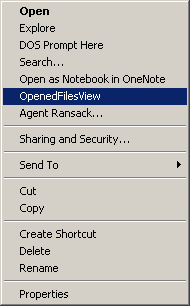
Starting from version 1.10, you can launch OpenedFilesView directly from Windows Explorer, and view
only the handles of the file or folder that you want to inspect.
In order to enable this feature, check the 'Enable Explorer Context Menu' under the Options menu.
After you enable this feature, you can right-click on any file or folder on Windows Explorer, and
choose the 'OpenedFilesView' item from the menu.
If you run the OpenedFilesView option for a folder, it'll display all opened files inside that folder.
If you run the OpenedFilesView option for a file, it'll display all opened handles for that file.
Other Options
- Show Opened Directories:
By default, OpenedFilesView only display the opened files.
If you also want to view the opened Directories (folders), select this option.
- Show Network Files:
By default, OpenedFilesView only display the opened files on your local drives.
If you also want to view the opened files on remote network drives, select this option.
- Sort On Refresh:
If this option is selected, new opened files (after refresh) are added to the right position according to the current column sort.
If this option is not selected, new opened files are added to the end of the opened files list.
Watch specific application with Drag & Drop
If you want to view only the opened files of specific application instead of the entire system, you can drag the target icon of the toolbar into
the window of the desired application.
Whenever you want to view all opened files again, simply use the 'Clear File/Process Filters' option.
Command-Line Options
|
/stext <Filename>
| Save the list of all opened files into a regular text file.
| |
/stab <Filename>
| Save the list of all opened files into a tab-delimited text file.
| |
/scomma <Filename>
| Save the list of all opened files into a comma-delimited text file.
| |
/stabular <Filename>
| Save the list of all opened files into a tabular text file.
| |
/shtml <Filename>
| Save the list of all opened files into HTML file (Horizontal).
| |
/sverhtml <Filename>
| Save the list of all opened files into HTML file (Vertical).
| |
/sxml <Filename>
| Save the list of all opened files to XML file.
| |
/sort <column>
|
This command-line option can be used with other save options for sorting by the desired column.
If you don't specify this option, the list is sorted according to the last sort that you made from the user interface.
The <column> parameter can specify the column index (0 for the first column, 1 for the second column, and so on) or
the name of the column, like "Filename" and "Created Time".
You can specify the '~' prefix character (e.g: "~Created Time") if you want to sort in descending order.
You can put multiple /sort in the command-line if you want to sort by multiple columns.
Examples:
OpenedFilesView.exe /shtml "f:\temp\1.html" /sort 2 /sort ~1
OpenedFilesView.exe /shtml "f:\temp\1.html" /sort "~Write Access" /sort "Filename"
| |
/nosort
|
When you specify this command-line option, the list will be saved without any sorting.
| |
/closefile <Filename>
| Close all handles of the specified filename.
| |
/closefolder <Folder>
| Close all handles of all files in the specified folder.
| |
/closefile killprocess <Filename>
| Kill the process that opened the specified filename.
| |
/closefolder killprocess <Folder>
| Kill the procsses of all files in the specified folder.
| |
/closefile closeprocess <Filename>
| Close the process that opened the specified filename.
| |
/closefolder closeprocess <Folder>
| Close the procsses of all files in the specified folder.
| |
/filefilter <Filename>
|
Start OpenedFilesView with file/folder filter.
If you specify a file, only the opened handles for the specified file will be displayed.
If you specify a folder, all the opened files under the specified folder will be displayed.
For example, if you want to view all opened files under c:\Program Files :
OpenedFilesView.exe /filefilter "C:\Program Files"
If you want to view all opened files with 'index.dat' filename:
OpenedFilesView.exe /filefilter "index.dat"
| |
/wildcardfilter <Filename>
|
Start OpenedFilesView with the specified wildcard filter.
For example, if you want to view only .txt files:
OpenedFilesView.exe /wildcardfilter *.txt
| |
/processfilter <Filename>
|
Start OpenedFilesView with process filter.
When you use this filter, only the files opened by the specified process will be displayed.
You can specify the full path of the process file, or only the filename without path.
For example:
OpenedFilesView.exe /processfilter "F:\Program Files\Mozilla Firefox\firefox.exe"
OpenedFilesView.exe /processfilter myapp.exe
|
Translating OpenedFilesView To Another Language
OpenedFilesView allows you to easily translate all menus, dialog-boxes, and other strings
to other languages.
In order to do that, follow the instructions below:
- Run OpenedFilesView with /savelangfile parameter:
OpenedFilesView.exe /savelangfile
A file named OpenedFilesView_lng.ini will be created in the folder of OpenedFilesView utility.
- Open the created language file in Notepad or in any other text editor.
- Translate all menus, dialog-boxes, and string entries to the desired language.
- After you finish the translation, Run OpenedFilesView, and all translated
strings will be loaded from the language file.
If you want to run OpenedFilesView without the translation, simply rename the language file, or move
it to another folder.
License
This utility is released as freeware.
You are allowed to freely distribute this utility via floppy disk, CD-ROM,
Internet, or in any other way, as long as you don't charge anything for this.
If you distribute this utility, you must include all files in
the distribution package, without any modification !
Disclaimer
The software is provided "AS IS" without any warranty, either expressed or implied,
including, but not limited to, the implied warranties of merchantability and fitness
for a particular purpose. The author will not be liable for any special, incidental,
consequential or indirect damages due to loss of data or any other reason.
Feedback
If you have any problem, suggestion, comment, or you found a bug in my utility,
you can send a message to nirsofer@yahoo.com
OpenedFilesView is also available in other languages. In order to change the language of
OpenedFilesView, download the appropriate language zip file, extract the 'openedfilesview_lng.ini',
and put it in the same folder that you Installed OpenedFilesView utility.
|
|