| |

| OutlookStatView v2.32
Copyright (c) 2009 - 2025 Nir Sofer
|
Related Links
Description
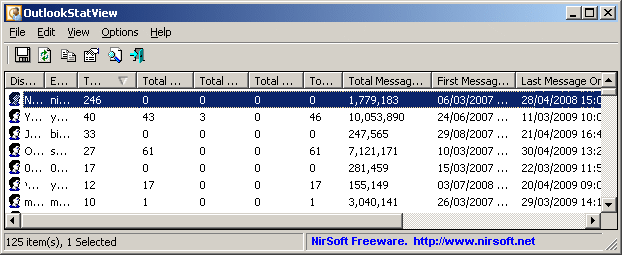
OutlookStatView scans your Outlook mailbox, and display a general statistics about the users that you communicate via emails.
For each user/email, the following information is displayed: The number of outgoing messages that you sent to the user (separated by to/cc/bcc),
the number of incoming message that the user sent to you, the total size of messages sent by the user, the email client software used by this user, and the time range that you send/received emails with the specified user.
System Requirements
- Windows 2000/XP/Vista/2003/2008/7/8/10/11.
- Any version of Microsoft Outlook, including Outlook 2024.
Versions History
- Version 2.32
- Updated to display the correct profile name in the 'Mailbox Scan Options' window if it contains non-ASCII characters.
- Version 2.31
- Added 'Black Background' option (Under the View menu). When it's turned on, the main table is displayed in black background and white text, instead of default system colors.
- Version 2.30
- Added 'Sort By' toolbar button.
- Fixed issue: When copying data to the clipboard or exporting to tab-delimited file, every line contained an empty field in the end of the line.
- Version 2.28
- Updated to stop the Outlook mailbox scan when you press the Esc key.
- Version 2.27
- The status bar now displays the current scanned Outlook folder.
- Version 2.26
- Fixed issue: When choosing to scan the mailbox of another Outlook profile (Instead of default) while Outlook is opened in the background, the profile opened in Outlook was used, instead of the profile selected in OutlookStatView.
- Version 2.25
- Added option to change the sorting column from the menu (View -> Sort By). Like the column header click sorting, if you click again the same sorting menu item, it'll switch between ascending and descending order. Also, if you hold down the shift key while choosing the sort menu item, you'll get a secondary sorting.
- Version 2.20
- Updated to work properly in high DPI mode.
- Fixed the /cfg command-line option to load the .cfg file from the current directory if full path is not specified.
- Version 2.18
- Fixed to display informative error message when trying to connect to Outlook 2019/2016/2013 with the wrong build of OutlookStatView (OutlookStatView 32-bit with Outlook x64)
- Version 2.17
- You can now select the desired folder to scan or to skip from a combo-box ('Mailbox Scan Options' window).
- Version 2.16
- OutlookStatView now remembers the last size/position of the properties window.
- Version 2.15
- Fixed bug: OutlookStatView detected sent messages in folder of IMAP account as received messages.
- Version 2.12
- Added 'Auto Size Columns On Load' option.
- The properties window is now resizable.
- Version 2.11
- Fixed bug: 'Copy Selected Items' worked improperly when setting the 'Unicode/Ascii Save Mode' to 'Always UTF-8'.
- Version 2.10
- Added 'Total Messages Size' (Total of both incoming and outgoing messages) to the 'Email Addresses Summary' report.
- The total size of all selected items is now displayed in the status bar.
- Version 2.07
- Fixed a crash that occurred when OutlookStatView failed to get a name of Outlook folder.
- Version 2.06
- Version 2.05
- Added 'Align Numeric Columns To Right' option.
- Version 2.00
- You can now choose the desired encoding (ANSI, UTF-8, UTF-16) to save the csv/xml/text/html files. (Under the Options menu)
- Version 1.95
- Added new report: Hours Only Summary (Without Dates).
- Version 1.92
- The report type is now displayed in the window title.
- Version 1.91
- Fixed the tab order in the 'Scan Options' window.
- Version 1.90
- Added 'Any Time Summary Report', which displays a summary report for all times in a single line.
- Version 1.85
- Added option to display folders in Daily/Weekly/Monthly/Yearly summary reports (Choose 'For every folder' in the right combo-box).
- Fixed bug: OutlookStatView failed to remember the last size/position of the main window if it was not located in the primary monitor.
- Version 1.81
- Fixed to display the profiles list for Outlook 2013 in the 'Profile Name' combo-box.
- Version 1.80
- Added new columns for the Daily/Weekly/Monthly/Yearly summary report: 'Total Messages Count' and 'Total Size'.
- Version 1.75
- Added 'Save Configuration To File' and 'Load Configuration From File' options.
- Version 1.72
- Added secondary sorting support: You can now get a secondary sorting, by holding down the shift key while clicking the column header. Be aware that you only have to hold down the shift key when clicking the second/third/fourth column. To sort the first column you should not hold down the Shift key.
- Version 1.71
- Version 1.70
- Added new statistics reports, which allows you to view the amount and total size of incoming/outgoing messages grouped by a time period - hour, day, week, month, or year.
You can get the new reports by choosing the desired report from the 'Report Type' field in the 'Scan Options' window.
- Version 1.62
- Fixed to display local date/time values according to daylight saving time settings.
- Version 1.61
- Version 1.60
- Added option to choose display unit for 'Total Incoming Messages Size' and 'Total Outgoing Messages Size' columns - Bytes, KB, or MB.
- Version 1.57
- Added option to choose another font (font name and size) to display the Outlook statistics. (Options -> Select Another Font)
- Version 1.56
- Fixed the flickering occurred while scrolling the emails list.
- Version 1.55
- You can now resize the scan options dialog-box. Also, the last size and position of this dialog-box is saved to the config file.
- Version 1.54
- Fixed issue: The properties and the options windows opened in the wrong monitor, on multi-monitors system.
- Version 1.53
- Added 'Auto Size Columns+Headers' option, which allows you to automatically resize the columns according to the row values and column headers.
- Version 1.52
- Fixed the tab order of the Scan Options window.
- Version 1.51
- When trying to connect to Outlook 2010 with the wrong build of OutlookStatView (OutlookStatView 32-bit with Outlook x64 or OutlookStatView x64 with Outlook 32-bit), OutlookStatView now displays informative error message about the problem.
- Version 1.50
- Added 'Skip Exchange public folders' option.
- Version 1.45
- Added option to scan only emails in the last xx days (alternative to the date/time range).
- Version 1.41
- When adding a folder to scan (with the Add button), the folder path in now delimited with quotes, to ensure that
it'll be scanned properly if the folder name contains a comma character.
- Version 1.40
- Added 'Skip the specified folders' option.
- Added option to choose the desired folders to scan or to skip from the list of all Outlook folders.
- Version 1.35
- Added the ability to choose the desired Outlook profile inside the 'Mailbox Scan Options' window.
- Version 1.32
- You can now scan a specific folder with all its subfolders, by specifying * as
the last character of the folder string, for example: Personal Folders\Inbox*
- Version 1.31
- Fixed OutlookStatView to be able to scan the public folders of Exchange server.
- Version 1.30
- Added a total line to the outlook statistics report.
- Added time fields to the scanning date range.
- Version 1.28
- The date range values are now saved/loaded in the .cfg file.
- Version 1.27
- Added 'Copy As Emails List' option (Ctrl+L) which allows you to copy to the clipboard the selected emails as
semicolon delimited list that can be used in the To/CC fields of Outlook or other email software.
- Added 'New Email To Selected Contacts' (Ctrl+F2) under the File menu, which allows you to easily compose a new
message to the selected emails.
- Version 1.26
- Added 'Mark Odd/Even Rows' option, under the View menu. When it's turned on, the odd and even rows are displayed in different color, to make it easier to read a single line.
- Version 1.25
- Added new option to specify the list of folders that you wish to scan (comma-delimited list), instead of
scanning the entire mailbox.
- Version 1.23
- You can now send the Outlook statistics data to stdout by specifying an empty filename ("") in the command-line. (For example: OutlookStatView.exe /stab "" > c:\temp\stat.txt)
- Version 1.22
- Added /cfg command-line option for loading the configuration from another .cfg file.
- Version 1.21:
- Fixed bug: The last character of the software name was truncated.
- Version 1.20:
- Added a new option to 'Mailbox Scan Options', which allows you to scan another profile of Outlook, instead of
the default one.
- Version 1.16:
- Added 'Add Header Line To CSV/Tab-Delimited File' option. When this option is turned on, the column names are added
as the first line when you export to csv or tab-delimited file.
- Version 1.15:
- Added 2 new columns: 'Average Incoming Messages Size' and 'Average Outgoing Messages Size'.
- Version 1.12:
- Fixed issue: removed the wrong encoding from the xml string, which caused problems to some xml viewers.
Also, removed invalid characters from some xml names.
- Version 1.11:
- Added 'Total Outgoing Messages Size' column.
- Version 1.10:
- Added 'MailBox Scan Options' window, which allows you to choose the dates
range to scan.
- Fixed bug: 'First Message On' and 'Last Message On' displayed wrong dates in some Outlook configurations.
- Added a separated x64 version, for using only with Outlook 2010 64-bit.
- Version 1.06 - Fixed a crash problem when using this utility with IMAP accounts.
- Version 1.05 - Added First Computer Address and Last Computer Address columns
- Version 1.02 - Fixed bug: OutlookStatView crashed when Outlook session cannot be created.
- Version 1.01 - Fixed bug: OutlookStatView displayed bad characters in the Email column.
- Version 1.00 - First release.
Using OutlookStatView
OutlookStatView doesn't require any installation process or additional dll files.
In order to start using it, simply run the executable file - OutlookStatView.
If you have only one profile in your Outlook, and this profile doesn't require any password, you can run
OutlookStatView even without starting Outlook, and it'll automatically scan the mailbox of your current Outlook profile.
Otherwise, it's recommended to open Outlook in the right profile before starting OutlookStatView.
After running OutlookStatView, the 'MailBox Scan Options' window will be displayed.
This window allows to choose to scan your mailbox only in specific dates range.
For example, if you want to get the statistics only for January 2010,
you should choose the dates range from 01/01/2010 and up to 02/01/2010 (the last day won't be included)
When you restrict the scan to short dates range, the scan process will be much faster then scanning the entire mailbox.
After choosing 'Ok' in the options window, OutlookStatView will start to scan your mailbox and then display the statistics about your email activity.
Be aware that the scanning process may take from a few seconds to a few minutes, depending on the size of your mailbox and your hardware.
Columns Description
- Display Name:
The display name of the user.
- Email:
The email address.
- Total Incoming:
Total number of emails that sent by this user to your mailbox.
- Total Outgoing (To):
Total number of emails that you sent to this user as 'To'.
- Total Outgoing (CC):
Total number of emails that you sent to this user as 'CC'.
- Total Outgoing (BCC):
Total number of emails that you sent to this user as 'BCC'.
- Total Outgoing (All):
Total number of emails that you sent to this user.
- Total Incoming Messages Size:
Total size of messages received from the specified user.
- Total Outgoing Messages Size:
Total size of messages sent to the specified user.
- First Message On:
The date/time of the first time that you sent or received a message to this user.
- Last Message On:
The date/time of the last time that you sent or received a message to this user.
- First Software Name:
The software name (Outlook, Thunderbird, and so on) that this user used in his first message sent to you.
Be aware that for some kind of emails (For example: GMail accounts), this field will remain empty.
- Last Software Name:
The software name (Outlook, Thunderbird, and so on) that this user used in his last message sent to you.
Be aware that for some kind of emails (For example: GMail accounts), this field will remain empty.
- First/Last Computer Address:
The computer address that this user used in his first/last message sent to you.
Depending on mail server configuration, this column might contain the name/IP address of the computer that sent the email or
the name/address of the mail server itself. The IP address displayed in this column might be the internal IP address (for example: 192.168.5.6) or
an external IP address that was used to send the email.
Command-Line Options
|
/stext <Filename>
| Save the Outlook statistics into a regular text file.
| |
/stab <Filename>
| Save the Outlook statistics into a tab-delimited text file.
| |
/scomma <Filename>
| Save the Outlook statistics into a comma-delimited text file.
| |
/stabular <Filename>
| Save the Outlook statistics into a tabular text file.
| |
/shtml <Filename>
| Save the Outlook statistics into HTML file (Horizontal).
| |
/sverhtml <Filename>
| Save the Outlook statistics into HTML file (Vertical).
| |
/sxml <Filename>
| Save the Outlook statistics to XML file.
| |
/cfg <filename>
|
Starts OutlookStatView with the specified configuration file instead of the default OutlookStatView.cfg
|
Translating OutlookStatView to other languages
In order to translate OutlookStatView to other language, follow the instructions below:
- Run OutlookStatView with /savelangfile parameter:
OutlookStatView.exe /savelangfile
A file named OutlookStatView_lng.ini will be created in the folder of OutlookStatView utility.
- Open the created language file in Notepad or in any other text editor.
- Translate all string entries to the desired language.
Optionally, you can also add your name and/or a link to your Web site.
(TranslatorName and TranslatorURL values) If you add this information, it'll be
used in the 'About' window.
- After you finish the translation, Run OutlookStatView, and all translated
strings will be loaded from the language file.
If you want to run OutlookStatView without the translation, simply rename the language file, or move
it to another folder.
License
This utility is released as freeware.
You are allowed to freely distribute this utility via floppy disk, CD-ROM,
Internet, or in any other way, as long as you don't charge anything for this.
If you distribute this utility, you must include all files in
the distribution package, without any modification !
Disclaimer
The software is provided "AS IS" without any warranty, either expressed or implied,
including, but not limited to, the implied warranties of merchantability and fitness
for a particular purpose. The author will not be liable for any special, incidental,
consequential or indirect damages due to loss of data or any other reason.
Feedback
If you have any problem, suggestion, comment, or you found a bug in my utility,
you can send a message to nirsofer@yahoo.com
OutlookStatView is also available in other languages. In order to change the language of
OutlookStatView, download the appropriate language zip file, extract the 'outlookstatview_lng.ini',
and put it in the same folder that you Installed OutlookStatView utility.
|
|