| |

| RegDllView v1.60 - View registered dll/ocx/exe files on your system and Register dll files from Explorer
Copyright (c) 2007 - 2015 Nir Sofer
|
Related Utilities
- RegScanner - Alternative to RegEdit find/search of Windows
- RegFromApp - Generate RegEdit .reg file from Registry changes made by application.
- NK2Edit - Edit, merge and repair the AutoComplete files (.NK2) of Microsoft Outlook.
Related Links
Description
RegDllView is a small utility that displays the list of all registered dll/ocx/exe files (COM registration).
For each registered file, you can view the last date/time that it was registered, and the list of all
registration entries (CLSID/ProgID).
RegDllView also allows you to unregister dll/ocx files that you don't need on your system anymore.
If you have dll/ocx files that don't exist on your system anymore, but their registration entries are still
exist in your Registry, you can manually remove these entries by using 'Delete All Entries For Selected Files' option.
Starting from version 1.35, RegDllView also allows you to register dll/ocx files (like regsvr32), simply by
dragging one or more files from Explorer folder into the window of RegDllView.
System Requirements
This utility works on any version of Windows - from Windows 98 to Windows 10.
There is also a separated download for handling x64 registrations.
Versions History
- Version 1.60:
- Added 'File Extension' column.
- Version 1.58:
- Added secondary sorting support: You can now get a secondary sorting, by holding down the shift key while clicking the column header. Be aware that you only have to hold down the shift key when clicking the second/third/fourth column. To sort the first column you should not hold down the Shift key.
- The 'Read Digital Signatures' option is now turned off by default.
- Version 1.57:
- Added 'Show Time In GMT' option.
- Fixed to display date/time values according to daylight saving time settings.
- Version 1.56:
- Fixed bug: RegDllView failed to extract the digital signatures on some systems.
- Version 1.55:
- Added 'Digital Signature' column, which displays the signer name if the registered dll is signed with a digital signature. This column is active only when 'Read Digital Signatures' option (Under the Options menu) is turned on.
- Version 1.50:
- Added 'Auto Size Columns+Headers' option.
- When running RegDllView on Windows Vista/7/8/2008 without 'Run As Administrator', it now allows you to use the 'Open In RegEdit' feature (Elevation window will appear when using the 'Open In RegEdit' option).
- Version 1.46:
- Fixed issue: The properties dialog-box and other windows opened in the wrong monitor, on multi-monitors system.
- Version 1.45:
- Added 'Stop' menu item to stop the scanning process of registered dll files.
- Version 1.42:
- Added 'Mark Odd/Even Rows' option, under the View menu. When it's turned on, the odd and even rows are displayed in different color, to make it easier to read a single line.
- Version 1.41:
- Added 'Add Header Line To CSV/Tab-Delimited File' option. When this option is turned on, the column names are added
as the first line when you export to csv or tab-delimited file.
- Version 1.40:
- Added command-line documentation, which was missed until now.
- Added sorting command-line options.
- Version 1.36:
- Fixed bug: RegDllView had 'CoInitialize has not been called' error when trying to register or unregister a dll file.
- Version 1.35:
- Added Drag & Drop support - When you drag .dll/.ocx files from Explorer into the window of
RegDllView, they are automatically registered.
- Added Re-Register files option - Allows you to register again files that already registered. (For fixing problems with registrations)
- Fixed some problems with the 'Unregister Selected Files' option.
- Added 'Open Folder' option.
- Added 'Register File' option.
- Added x64 version.
- Version 1.31
- Added 'Explorer Copy' option - Allows you to copy the selected files and then paste them into a folder in Explorer.
- Version 1.30
- Added new columns: File Modified Time, File Created Time, File Attributes.
- Version 1.25
- Added new option: 'Create .Reg File For Deleting Entries' - Allows you to create a .reg file that will remove
all entries of the selected registered files when you run it.
This option can be useful if you want to clean the same registered files in multiple machines.
- Added more accelerator keys.
- Fixed the focus problem after using the unregister/delete options.
- Version 1.20
- Added 'Control Entries' column (Number of registered controls for the specified file)
- Added 'Threading Model' and 'Last Write Time' columns for the lower pane.
- Version 1.15
- Added name-only column (without the full path)
- Added version information columns (Product Name, Product Version, Company Name, and so on...)
- Version 1.10
- Added new option: Delete All Entries For Selected Files -
You can use this option when the file is missing and you cannot use the unregister option.
- Fixed bug: The main window lost the focus when the user switched to another application and then returned back to RegDllView.
- Version 1.03 - Fixed Bug: Registered exe files with command-line parameters displayed as missing.
- Version 1.02 - Added support for saving as comma-delimited file.
- Version 1.01 - Fixed Bug: shell32.dll displayed as missing file.
- Version 1.00 - First Release.
Start Using RegDllView
RegDllView doesn't require any installation process or additional DLLs.
Just copy the executable file (RegDllView.exe) to any folder you like, and run it.
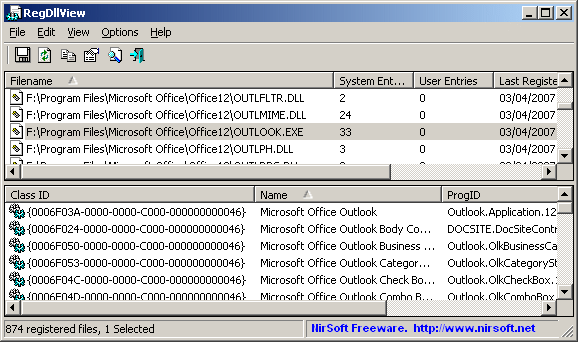
The main window of RegDllView has 2 panes:
- The upper pane - Displays the list of all registered files.
- The lower pane - Displays the list of all COM registration entries of the selected file in the upper pane.
Tips for using RegDllView
- If you want to view the files that registered in the last hours/days, simply click the 'Last Registered On' column,
and the list will be sorted according to the registration date.
- If you want to find obsolete registrations on your system, simply click the 'Missing File' in order to sort the list by 'Missing File' status.
- You can unregister multiple dll files simply by selecting them in the upper pane, and then using the
"Unregister Selected Files" option.
However, this feature won't work on missing/corrupted files.
- The 'System Entries' column displays the number of COM entries under HKEY_LOCAL_MACHINE\Software\Classes\CLSID for the specified file.
- The 'User Entries' column displays the number of COM entries under HKEY_CURRENT_USER\Software\Classes\CLSID for the specified file.
Command-Line Options
|
/stext <Filename>
| Save the list of registered dll files into a regular text file.
| |
/stab <Filename>
| Save the list of registered dll files into a tab-delimited text file.
| |
/scomma <Filename>
| Save the list of registered dll files into a comma-delimited text file (csv).
| |
/stabular <Filename>
| Save the list of registered dll files into a tabular text file.
| |
/shtml <Filename>
| Save the list of registered dll files into HTML file (Horizontal).
| |
/sverhtml <Filename>
| Save the list of registered dll files into HTML file (Vertical).
| |
/sxml <Filename>
| Save the list of registered dll files to XML file.
| |
/sort <column>
|
This command-line option can be used with other save options for sorting by the desired column.
If you don't specify this option, the list is sorted according to the last sort that you made from the user interface.
The <column> parameter can specify the column index (0 for the first column, 1 for the second column, and so on) or
the name of the column, like "Filename" and "Name Only".
You can specify the '~' prefix character (e.g: "~Last Registered On") if you want to sort in descending order.
You can put multiple /sort in the command-line if you want to sort by multiple columns.
Examples:
RegDllView.exe /shtml "f:\temp\regdll.html" /sort 2 /sort ~1
RegDllView.exe /shtml "f:\temp\regdll.html" /sort "Company" /sort "Filename"
| |
/nosort
|
When you specify this command-line option, the list will be saved without any sorting.
|
Translating RegDllView to other languages
In order to translate RegDllView to other language, follow the instructions below:
- Run RegDllView with /savelangfile parameter:
RegDllView.exe /savelangfile
A file named RegDllView_lng.ini will be created in the folder of RegDllView utility.
- Open the created language file in Notepad or in any other text editor.
- Translate all string entries to the desired language.
Optionally, you can also add your name and/or a link to your Web site.
(TranslatorName and TranslatorURL values) If you add this information, it'll be
used in the 'About' window.
- After you finish the translation, Run RegDllView, and all translated
strings will be loaded from the language file.
If you want to run RegDllView without the translation, simply rename the language file, or move
it to another folder.
License
This utility is released as freeware.
You are allowed to freely distribute this utility via floppy disk, CD-ROM,
Internet, or in any other way, as long as you don't charge anything for this.
If you distribute this utility, you must include all files in
the distribution package, without any modification !
Disclaimer
The software is provided "AS IS" without any warranty, either expressed or implied,
including, but not limited to, the implied warranties of merchantability and fitness
for a particular purpose. The author will not be liable for any special, incidental,
consequential or indirect damages due to loss of data or any other reason.
Feedback
If you have any problem, suggestion, comment, or you found a bug in my utility,
you can send a message to nirsofer@yahoo.com
RegDllView is also available in other languages. In order to change the language of
RegDllView, download the appropriate language zip file, extract the 'regdllview_lng.ini',
and put it in the same folder that you Installed RegDllView utility.
|
|